Flickhaven IPTV UK
IPTV Not Loading or No Channels? 8 Fixes, in the Right Order
When IPTV is not loading or shows no channels, the cause is usually the login, the plan or the connection. Paste the server URL, username and password fresh from your provider's message, then check the plan has not expired. If the details are right, test the same login on mobile data, then force-close the app and clear its cache. If one channel will not play but others do, that stream is down at the server, so report it to support.
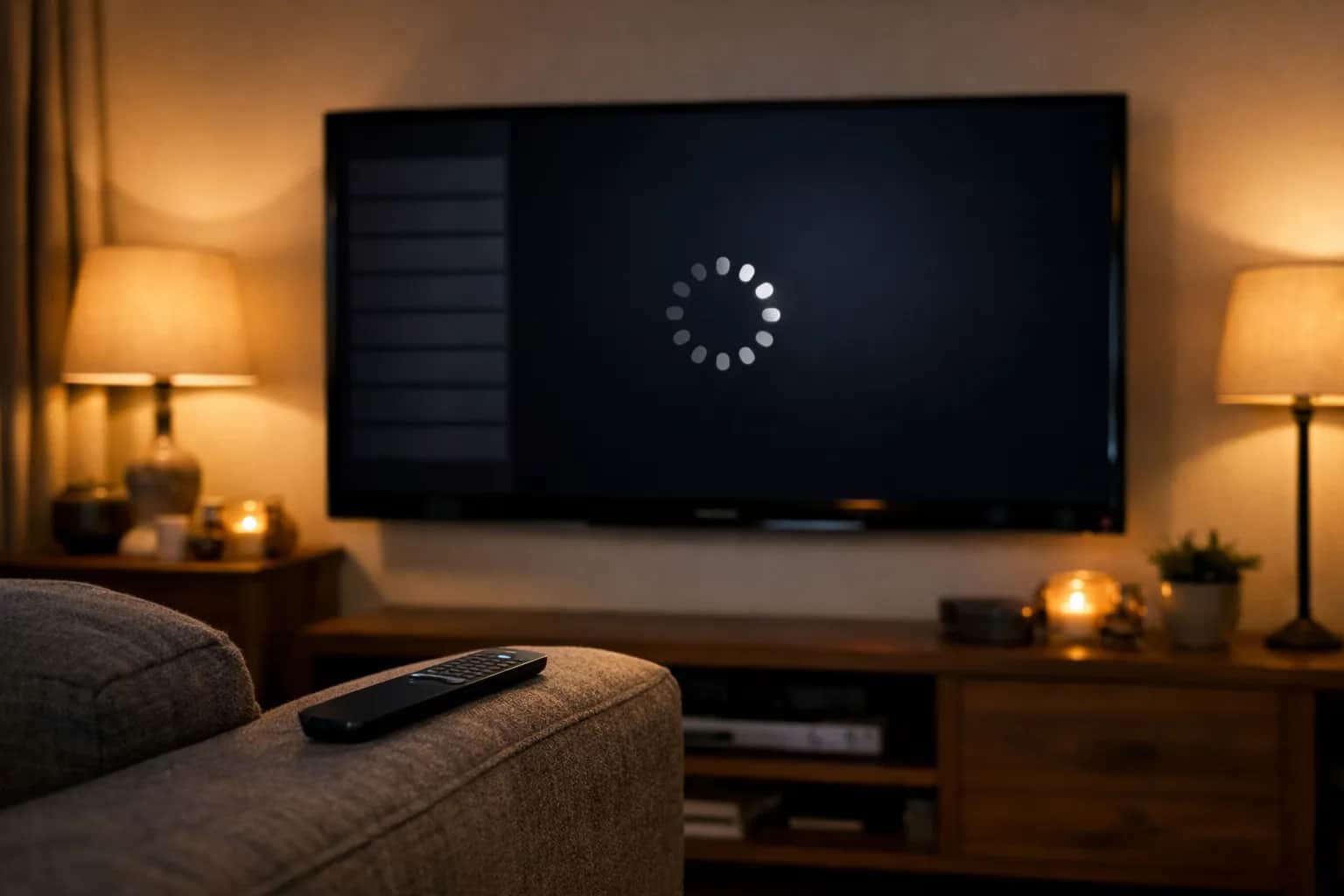
IPTV not loading? Whether the app is stuck on the loading screen, shows no channels, won't play, or plays on your phone but not your TV, the same eight checks apply. Wrong login details and expired plans are the most common causes, so start there. If channels load but misbehave, our IPTV symptom-to-fix index maps each symptom to its fix; for background, see what IPTV actually is.
Quick Diagnosis — Find Your Fix Fast
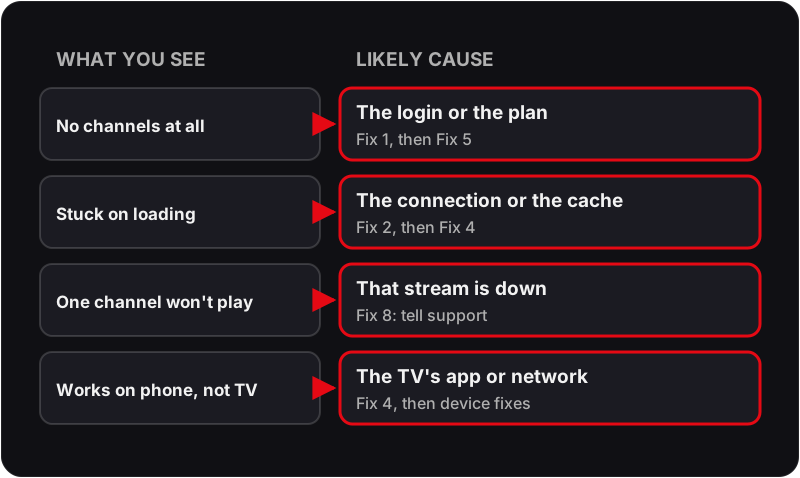
- ▸ All channels blank → wrong credentials or subscription expired (Fix 1 or 5)
- ▸ App opens but hangs on loading → internet or cache issue (Fix 2 or 4)
- ▸ Some channels load, others don't → server issue (Fix 8); if it persists, compare a free IPTV trial on your connection
- ▸ Worked before, stopped suddenly → subscription expired (Fix 5)
- ▸ Works on your phone but not your TV → the TV's app cache, clock or router filter (Fix 4, then the device fixes below)
- ▸ "Connect failed" or "Failed to authorize" at login → server URL typo, wrong password or expired plan (Fix 1 or 5) — see the failed-to-authorize fix
- ▸ "There is a problem with the streaming of this channel" on one channel → that stream is down at the server (Fix 8); on every channel → credentials or subscription (Fix 1 or 5)
- ▸ Channels load but freeze every few seconds → see our IPTV buffering fix
Why Are My IPTV Channels Not Loading?
IPTV channels stop loading for six main reasons. Identifying which one applies takes 30 seconds and points you directly to the right fix:
How to fix IPTV not loading, in order
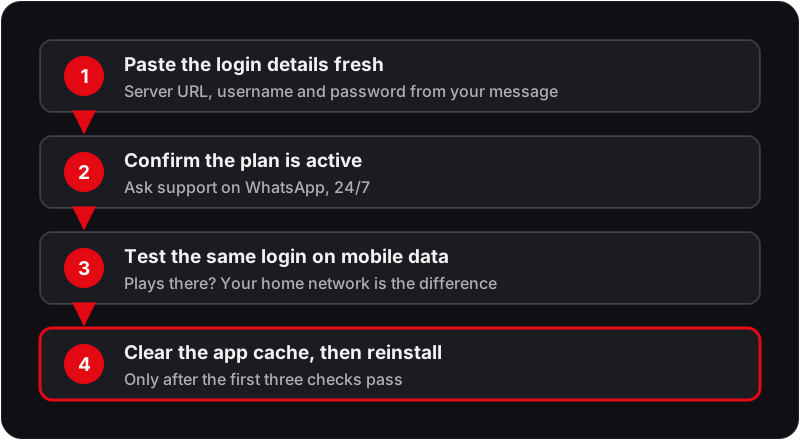
Work from the cheapest check to the most disruptive. Re-entering the login takes a minute; reinstalling the app wipes your settings and favourites, so it comes last.
Fix 1: Check Your Credentials
The most common cause of IPTV not loading. Open your IPTV app settings and verify your Server URL, Username, and Password are entered exactly as provided. Even a single extra space or missing character will prevent all channels from loading.
- 1Open your IPTV app and go to the playlist or account settings.
- 2Delete and re-enter your Server URL, Username, and Password.
- 3Copy-paste directly from your WhatsApp activation message to avoid typos.
- 4Log in and give the channel list a moment to load.
Fix 2: Check Your Internet Connection
IPTV requires a stable internet connection. Even if your Wi-Fi shows connected, the actual connection may be weak or intermittent — especially on 2.4GHz Wi-Fi in busy households.
- 1Open a browser on the same device and visit google.com.
- 2If it loads, your connection is fine — the issue is with credentials or the app.
- 3If it doesn't load, restart your router: unplug for 60 seconds, then reconnect.
- 4For best results, connect via 5GHz Wi-Fi or a wired Ethernet cable.
Fix 3: Force Close and Restart the App
The IPTV app may be stuck in a bad state. Force closing it fully — not just pressing Back — often resolves channel loading failures immediately.
- 1On Firestick: Settings → Applications → Manage Installed Applications → your IPTV app → Force stop.
- 2On Android TV / Google TV: Settings → Apps → your IPTV app → Force stop.
- 3On Samsung / LG Smart TV: switch the TV off at the wall for 30 seconds, which closes every app.
- 4Reopen the app fresh and give the channel list a moment to load.
Fix 4: Clear the App Cache and Data
Corrupted cache or stored data can prevent channels from loading — this is the fix when the app opens but channels stay blank or stuck on a loading spinner.
- 1On Firestick: Settings → Applications → Manage Installed Applications → your IPTV app → Clear Cache, then Clear Data.
- 2On Android: Settings → Apps → your IPTV app → Storage → Clear Cache and Clear Data.
- 3On Samsung TV: Settings → Support → Device Care → Manage Storage → your IPTV app.
- 4Reopen the app and re-enter your Flickhaven credentials.
Fix 5: Check if Your Subscription is Active
If your subscription has expired, all channels will stop loading — the app will open but show an empty list or a credentials error.
- 1Message Flickhaven support on WhatsApp to confirm your subscription is active.
- 2If it has expired, renew your subscription — channels return once the renewal is processed.
- 3After renewing, force close and reopen your IPTV app to refresh the connection.
Still having issues with your provider?
Switch to an IPTV service that just works
Flickhaven runs on UK servers with a 99.9% uptime target and Anti-Freeze load-balancing, so channels load when you need them. If you keep hitting the same problems with your current provider, the issue is the service, not your device.
Fix 6: Try a Different IPTV App
The app itself may have a bug or a corrupted installation. Testing with a different app confirms whether the issue is the app or your credentials and connection.
- 1If using IPTV Smarters Pro, try TiviMate — or vice versa.
- 2Enter the same Flickhaven credentials in the new app.
- 3If channels load in the new app, the original app has an issue — reinstall it.
Fix 7: Reinstall the IPTV App
A corrupted installation can cause channels to fail silently, especially after a system update. A full uninstall and fresh reinstall resolves this almost every time.
- 1Uninstall your IPTV app completely — not just clear data, a full uninstall.
- 2Download and reinstall it fresh from the app store or via Downloader on Firestick.
- 3Re-enter your credentials and test.
Fix 8: Contact Flickhaven Support
If all the above fail, the issue may be server-side — scheduled maintenance, a regional routing issue, or an account-specific problem only visible on our end.
- 1Message Flickhaven on WhatsApp with your Username and a description of the issue.
- 2Include: which device, which app, and what error message you see (if any).
- 3Support answers on WhatsApp 24/7 and will tell you whether the fault is at the server.
Smarters IPTV Not Loading?
When IPTV Smarters Pro is not loading, the same order applies, with two Smarters-specific checks. First, the server URL: the app needs the full address, including http:// and the port number, and a missing port can leave it loading without showing an error. Second, the saved user: remove it from the user list and add it again with the details pasted fresh, so the app downloads the channel list from scratch.
If Smarters refuses the login outright, that is a different fault, covered in the failed to authorize guide. If the channels load but the TV guide stays empty, see the IPTV Smarters EPG fixes.
Device-Specific IPTV Fixes
Each device has its own quirks. These targeted fixes resolve issues that the general steps above don't cover:
📺 Amazon Firestick
Go to Settings → Applications → Manage Installed Applications → your app, choose Force stop, then Clear cache. Reopen it and give the list a moment to load. If it still fails at home but plays on mobile data, your home network is the difference — restart the router first.
📺 Samsung Smart TV
Samsung TVs can cache broken playlists. Go to Settings → Support → Device Care → Manage Storage → find your IPTV app → Delete Data. Reinstall and re-enter credentials. Always use the 5GHz Wi-Fi band or a wired Ethernet connection for reliability.
📺 LG Smart TV (webOS)
LG webOS TVs can run short of memory with several apps open, which makes apps hang. Switch the TV off at the wall for 30 seconds to clear it, then relaunch your IPTV app. If it still hangs, delete the app and reinstall it from the LG Content Store.
📺 Android TV / Google TV
Clear the Play Store cache first (Settings → Apps → Google Play Store → Clear Cache), then clear your IPTV app cache and data. Re-enter credentials. Use 5GHz Wi-Fi, or Ethernet if your box has a port, for 4K channels.
📺 iPhone & iPad (iOS)
Close the app from the app switcher and reopen it. Turn off any VPN or content-filtering profile while you test, then switch between Wi-Fi and mobile data to see whether the problem follows the network.
IPTV Channels Not Loading — Frequently Asked Questions
Why are my IPTV channels not loading?+
The most common reasons IPTV channels stop loading are: incorrect credentials (wrong Server URL, Username or Password), an expired subscription, a weak internet connection, or corrupted app cache. Start by re-entering your credentials exactly as provided — most cases are resolved by Fix 1 (credentials) or Fix 5 (subscription).
How do I fix IPTV channels not loading on Firestick?+
On Firestick, go to Settings → Applications → Manage Installed Applications → your IPTV app, then choose Force stop, Clear cache and Clear data in that order. Reopen the app, re-enter your credentials and give the channel list a moment to load.
Why are there no channels on my IPTV?+
No channels on IPTV almost always means wrong credentials, an expired subscription, or a server URL missing its http:// or port number. Copy-paste your Server URL, Username and Password directly from your provider's activation message, then ask support whether the line is active. If your subscription has expired, renewing it brings the channel list back.
Why won't my IPTV play?+
If the channel list loads but nothing plays, the login is working and the problem is the stream, the connection or the player. Try a second channel: if that plays, the first stream is down at the server. If none play, test the same login on mobile data, then clear the app cache (Fix 4). If one app fails where another plays, the player is the cause (Fix 6).
How do I fix IPTV not loading on a Smart TV?+
Navigate to Settings → Apps → find your IPTV app → Clear Cache and Clear Data. Re-enter your Server URL, Username and Password. Use a 5GHz Wi-Fi connection or Ethernet for best stability. If channels still won't load, reinstall the IPTV app entirely.
Why did my IPTV stop working suddenly?+
Sudden IPTV failure is usually caused by a subscription expiry, a server maintenance window, or a router outage. Check your subscription status first, restart the app and router, then contact your provider's support if the issue persists.
How long does it take for IPTV channels to load?+
It depends on the size of the channel list, your connection and the device, and a large list takes longer on the first load than afterwards. If nothing has loaded after a few minutes, the credentials are likely wrong or the subscription has expired.
Does a VPN help fix IPTV not loading in the UK?+
Sometimes. If your channels fail only on your home broadband but play on mobile data, your home network is the difference, and a VPN is one way to test that. Connect the VPN before opening your IPTV app and test with a UK server location. If IPTV stops loading only when the VPN is on, turn it off and test again.
Why is my IPTV not working at all?+
When IPTV is not working at all — no channels, no VOD, nothing plays — the cause is almost always one of three things: the subscription has expired, the credentials were entered with a typo, or the device has lost its internet connection. Check those in that order (Fix 5, Fix 1, Fix 2). If the app opens but every channel fails, it is not a channel problem; it is an account or connection problem.
Why is my IPTV stuck on the loading screen?+
An IPTV app stuck on 'Loading…' is usually downloading a very large channel list on a slow or unstable connection, or working from a corrupted cache. Give a first load a few minutes, then force-close the app, clear its cache (Fix 4) and reopen it on 5GHz Wi-Fi or Ethernet. If it still hangs, the server URL may be wrong — a mistyped port number can produce an endless loading spinner rather than an error.
Why does IPTV work on my phone but not on my TV?+
If the same credentials play on your phone but not on your TV, the account and the server are fine — the problem is the TV or its network. The usual causes are a stale app cache on the TV, a wrong date and time on the TV (which breaks secure connections), a router content filter applied to the TV but not to mobile data, or the TV sitting on congested 2.4GHz Wi-Fi. Clear the app's data, check that the TV's time is set to automatic, and move the TV to 5GHz or Ethernet.
What does 'there is a problem with the streaming of this channel' mean?+
That message (shown by IPTV Smarters Pro and similar players) means the app reached the server but that one stream did not answer. Try a different channel first: if others play, the single channel is down at the provider's end — report it to support. If every channel shows the message, re-enter your credentials (Fix 1) and check your subscription has not expired (Fix 5).
My IPTV app is not loading — should I reinstall it?+
Reinstalling is the right move only after clearing the cache and data has failed (Fix 4). On Firestick and Android, uninstall the app, restart the device, reinstall from the store or Downloader, then re-enter your Server URL, Username and Password. Reinstalling never fixes an expired subscription or wrong credentials, so rule those out first.
Why does my IPTV say 'connect failed' or 'failed to authorize'?+
'Connect failed' means the app could not reach the server URL — check the address character by character, including http:// and the port number, and confirm the device is online. 'Failed to authorize' means the server was reached but rejected the username or password, or the account has expired or hit its connection limit. Our dedicated guide covers the IPTV Smarters 'failed to authorize' error step by step.
Related IPTV Troubleshooting Guides
Still Having Issues?
Flickhaven support is on WhatsApp, 24/7. Or start a free 24-hour trial and see the difference for yourself.
If you want the wider context, start with our complete UK IPTV guide, best IPTV UK guide and start a free trial.