Flickhaven IPTV UK
IPTV EPG Not Working: Fix a Blank or Wrong UK TV Guide
When the IPTV EPG is not working, the guide is usually a separate download that failed, not a subscription fault. Force a guide refresh inside the player and leave the app open until it finishes. If every programme is exactly an hour out, set the time offset to +1 in BST and 0 in GMT. If only a few channels say no EPG available, they are not mapped — send the channel names to support. M3U logins also need the separate EPG URL.
The EPG (Electronic Programme Guide) is the TV guide that shows what's on each channel — essential for UK viewers following Premier League fixtures, BBC schedules, and catch-up TV. When the IPTV EPG is not working — blank, not loading or an hour out — here's how to fix it (for faults beyond the guide, start from our hub of IPTV fixes). For background on how IPTV and EPG work together, see these guides: complete IPTV guide, what an EPG actually is and how IPTV catch-up TV works.
Common EPG Problems
- ▸EPG shows 'No information' or 'No EPG available' on all channels
- ▸EPG loads partially then stops
- ▸Wrong times — programme guide 1 hour off
- ▸EPG not updating — still showing yesterday
- ▸EPG worked before but stopped after an update
- ▸Specific channels missing from the EPG
Diagnose it in order
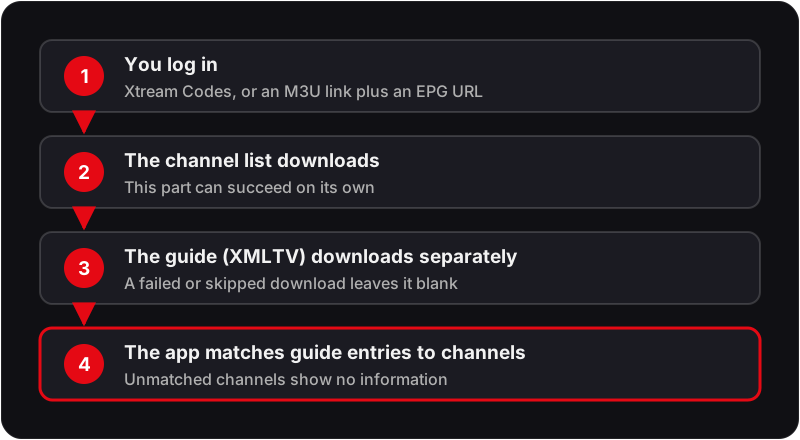
Match your symptom to one of the cases below before you start pressing refresh. Each case points to one or two of the numbered fixes further down, and tells you why that fix and not another.
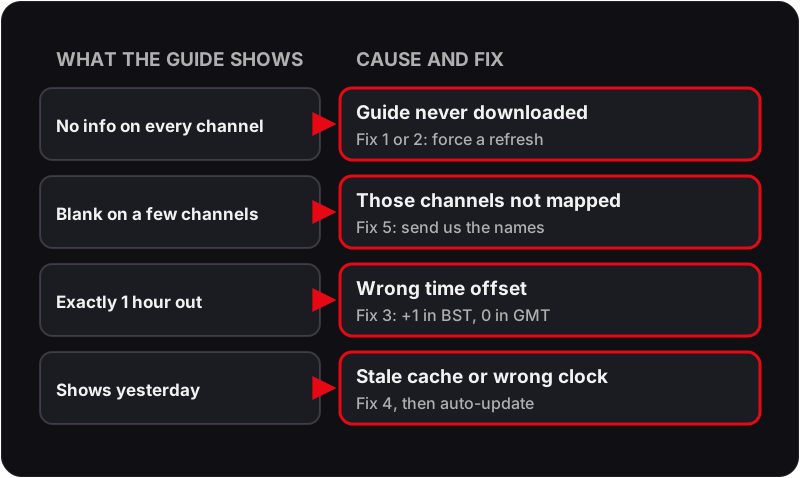
'No information' on every channel
- Most likely cause: The guide file never downloaded. The channel list and the EPG are two separate downloads, so the list can load perfectly while the guide fails.
- Check: Open the app's EPG settings and look for a last-updated time or a source count. A blank or very old value confirms the guide has not been fetched.
- Fix: Fix 1 or Fix 2 (force a refresh), then leave the app open until the update finishes.
- Why this step matters: Refreshing the playlist alone does not always refresh the guide, so a channel-list refresh can look successful while the EPG stays empty.
The guide is full for most channels but blank for a few
- Most likely cause: Those channels are not mapped to a guide entry. Regional variants and recently added channels are the usual gaps.
- Check: Open the channel's options. If the app shows an EPG ID or guide-source field and it is empty, the mapping is missing rather than the data.
- Fix: In TiviMate you can assign a guide entry to a channel manually from the channel options. Otherwise send us the channel names on WhatsApp (Fix 5) so the mapping can be corrected at source.
- Why this step matters: A refresh cannot fill a gap that does not exist in the guide file, so repeating Fix 1 will not help here.
Programmes are listed exactly one hour early or late
- Most likely cause: A time-zone offset. The guide carries times in UTC and the app is not applying the UK offset, or is applying last season's.
- Check: Compare one programme's start time in the guide with the clock on your device. A constant one-hour difference on every channel is the giveaway.
- Fix: Fix 3: set the timeshift to match GMT or BST.
- Why this step matters: If you correct the offset at the server end instead, the guide will be wrong again at the next clock change.
The guide shows yesterday's programmes, or stops part-way through the day
- Most likely cause: The cached guide is stale because automatic updates are off, or the device clock is wrong and the app is reading the right guide at the wrong moment.
- Check: Confirm the device's date and time are set to automatic, then check whether the app's EPG auto-update is enabled.
- Fix: Fix 4 (clear the cache), then switch auto-update on so the guide refreshes before you sit down to watch.
- Why this step matters: The guide is a schedule with absolute timestamps. A device clock that is hours out shifts the whole thing.
It worked until the app updated
- Most likely cause: The update reset settings, disabled the EPG source for your playlist, or cleared the cache without rebuilding it.
- Check: Open the playlist's settings and confirm the EPG source is still enabled and still points at the provider's guide.
- Fix: Re-enable the source, then Fix 1. If the guide still will not populate, Fix 6.
- Why this step matters: After an update the app often looks unchanged while a single toggle underneath has flipped.
Where the EPG settings live in each app
TiviMate
Settings → EPG holds the update schedule, the cache controls and the timeshift. Each playlist also has its own EPG source toggle under Settings → Playlists, which is where an update can quietly switch the guide off. When you log in with Xtream Codes, the guide address is supplied with your credentials, so you should not need to type an EPG URL unless support asks you to.
IPTV Smarters Pro
The guide lives on the EPG tab and refreshes with the playlist. An Xtream Codes login fetches the guide automatically; an M3U login needs the EPG URL typed into its own field when you add the playlist, and a blank field there is the usual reason an M3U setup shows no guide. The time offset sits in the general settings. For a walkthrough with screenshots, see our guide to repairing the EPG in IPTV Smarters Pro.
Smart TV apps
Apps installed directly on a Samsung or LG TV usually have fewer guide controls. Some manage the playlist and EPG through the app developer's website rather than on the TV, so a missing guide may need the EPG URL added there. If the app offers no EPG option at all, the practical fix is a different app or a streaming stick with TiviMate.
iPhone and iPad
GSE Smart IPTV and IPTV Smarters both pull the guide from an Xtream Codes login without extra setup. If you added the playlist as an M3U file, open the playlist entry and add the EPG URL alongside it. iOS pauses background downloads quickly, so keep the app open while the guide updates.
Keep the guide from dropping out again
- ▸Leave auto-update on and schedule it for a time the device is likely to be on but idle, such as early morning.
- ▸Keep the device date and time on automatic. A manual clock drifts, and a drifting clock shifts the whole guide.
- ▸Run one playlist with one EPG source. Two playlists pointing at two guides double the download and can overwrite each other's channel mapping.
- ▸After any app update, glance at the EPG settings before you assume the update broke something else.
- ▸Check the timeshift setting on the Sunday the clocks change in March and October.
Fix 1: Force Refresh the EPG in TiviMate
- 1Open TiviMate and go to Settings (gear icon).
- 2Open the EPG section.
- 3Run the EPG update.
- 4Wait 3–5 minutes for the full EPG to reload.
- 5Navigate back to the TV Guide to check if it has populated.
💡 With TiviMate Premium you can schedule the EPG to update automatically, for example early each morning; on the free version, refresh it by hand when the guide looks stale.
Fix 2: Force Refresh EPG in IPTV Smarters Pro
- 1Open IPTV Smarters Pro and go to your playlist settings.
- 2Tap Update Playlist / Refresh.
- 3Allow 2–3 minutes for the EPG data to download.
- 4Navigate to the Live TV section and check the EPG column.
Fix 3: Fix EPG Times Showing 1 Hour Wrong
- 1This is a timezone issue — your app is using UTC instead of UK time (GMT/BST).
- 2In TiviMate: open Settings → EPG and set the timeshift to +0 (winter) or +1 (summer/BST).
- 3In IPTV Smarters: Settings → Time Offset → adjust to match your local time.
- 4The EPG times should now match UK broadcast schedules.
💡 UK clocks change in March (BST, UTC+1) and October (GMT, UTC+0). Update your timeshift setting each time.
Fix 4: Clear EPG Cache
- 1If your player has a clear-EPG-cache option in its EPG settings, use it; otherwise clear the app's cache from the device (on Firestick: Settings → Applications → Manage Installed Applications → your app → Clear Cache).
- 2Close and reopen the app, then refresh the EPG.
- 3This forces the app to download fresh EPG data from the server.
Fix 5: Check Your Flickhaven EPG URL
- 1Some IPTV apps require the EPG URL to be entered separately.
- 2Contact Flickhaven support on WhatsApp to confirm your EPG URL.
- 3In your IPTV app settings, find the EPG URL field and enter the URL provided.
- 4Save and refresh the EPG.
Fix 6: Reinstall the IPTV App
- 1Uninstall your IPTV app completely.
- 2Reinstall it fresh from the app store.
- 3Re-enter your Flickhaven credentials.
- 4Allow 5–10 minutes for the EPG to fully populate after first login.
EPG Questions
What does 'No EPG available' or 'EPG not available for this channel' mean?+
The app has no guide entry to show. If the message appears on every channel, the guide file has not downloaded — force a refresh (Fix 1 or Fix 2) and leave the app open until it finishes. If it appears on a handful of channels only, those channels are not mapped to a guide entry, and a refresh will not help; send the channel names to support so the mapping can be checked.
Why is my IPTV EPG not updating?+
Usually because automatic guide updates are off or the device clock is wrong. Set the date and time to automatic, then turn on the app's EPG auto-update if it has one — in TiviMate, scheduled automatic EPG refresh is a TiviMate Premium feature, so on the free version you refresh the guide by hand. In IPTV Smarters, run Update Playlist and EPG from the playlist menu.
How long should the EPG take to load the first time?+
Several minutes on a first login, because the app downloads a schedule for every channel in the playlist before it can show anything. Leave the app in the foreground until it finishes. Switching apps or rebooting part-way through is the most common reason a first-time guide ends up half full.
Does the TV guide use a lot of data?+
No. The guide is downloaded once per update rather than streamed, and it is small next to a single evening of HD viewing. Leaving auto-update on costs very little and avoids the blank-guide problem entirely.
Why do only some channels offer catch-up from the guide?+
Catch-up is provided per channel, not across the whole lineup. The guide shows a catch-up or archive marker on channels that have it. If a channel you expect to see catch-up on has lost its marker, refresh the guide first, because the marker travels with the guide data.
Can I use a different EPG source instead of Flickhaven's?+
Most apps accept an external XMLTV guide URL, but the channel IDs in that guide must match the IDs in your playlist or you will get blank rows. The provider guide is already matched to the channel list, so use that unless you have a specific reason not to.
EPG Still Not Working?
Our support team can send you the correct EPG URL and walk you through setup via WhatsApp.
Related reading: UK IPTV guide, which IPTV providers are worth paying for and try it free for 24 hours.