Flickhaven IPTV UK
IPTV Black Screen Fix UK: Sound but No Picture
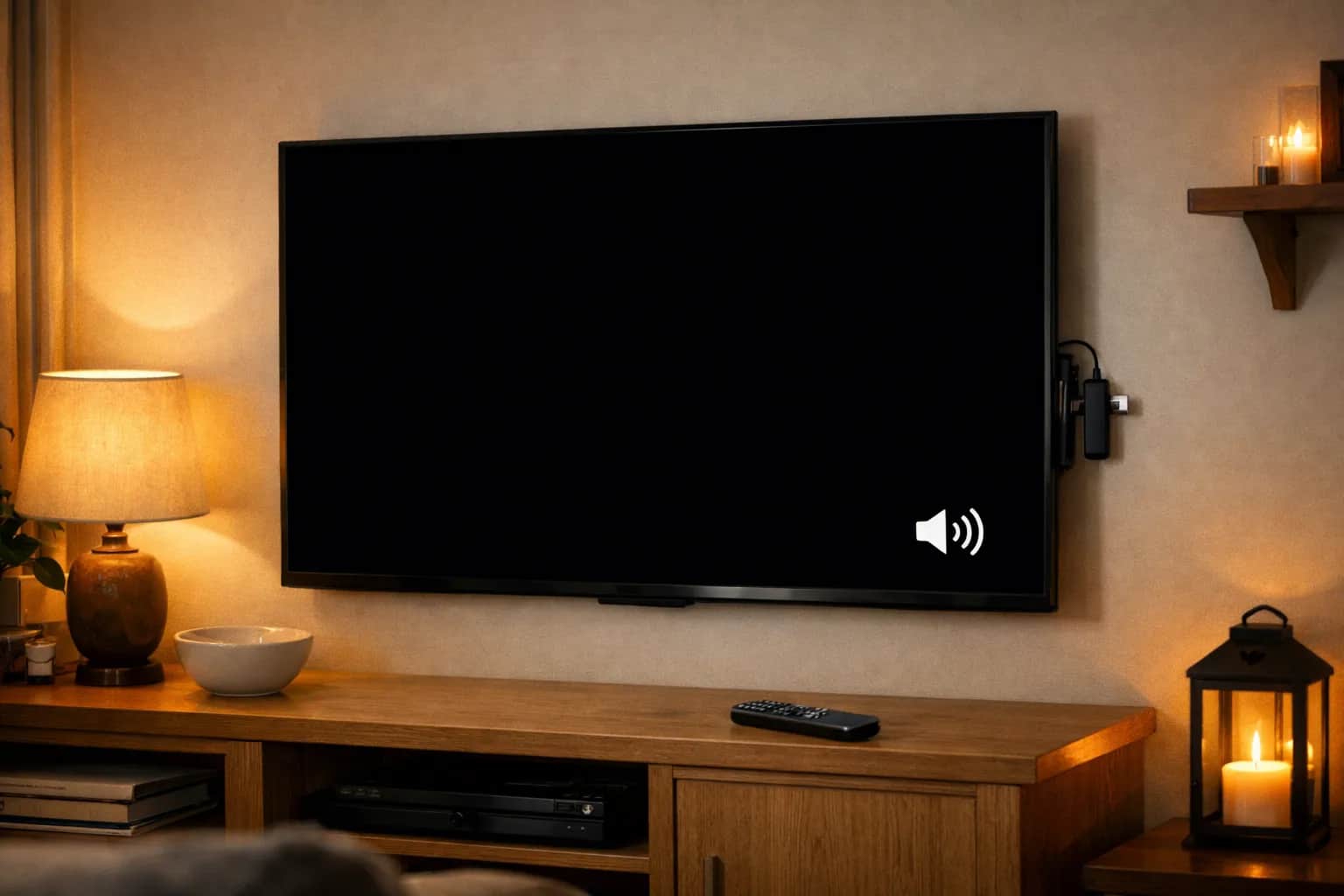
An IPTV black screen with sound means the stream is reaching your device but the video is not decoding or displaying. Press Home: if the menus look normal, switch the player engine in your IPTV app or pick the HD version of the channel; if the home screen is black too, reseat the HDMI cable and drop the output to 1080p. A screen that goes black every few seconds is the TV switching display mode, so turn off frame-rate matching and Dolby Vision.
What causes an IPTV black screen?
All of the causes below are device or app-side issues — your stream is delivering fine. For a full explanation of how IPTV streams work, see our what IPTV is and how it works. If the picture is fine but something else is wrong, our full list of IPTV fixes covers every other common fault.
- ▸ Wrong video player / decoder setting in your IPTV app
- ▸ HDMI handshake issue between device and TV
- ▸ Stream codec not supported by the current player
- ▸ 4K/HDR output mismatch between device and TV
- ▸ Outdated IPTV app version
Diagnose it in order: what the black screen is telling you
A black screen is not one fault. Work through the checks below in order. Each one rules out a whole category before you move on, so you stop at the first fix that works instead of changing five settings at once and never learning which one mattered.
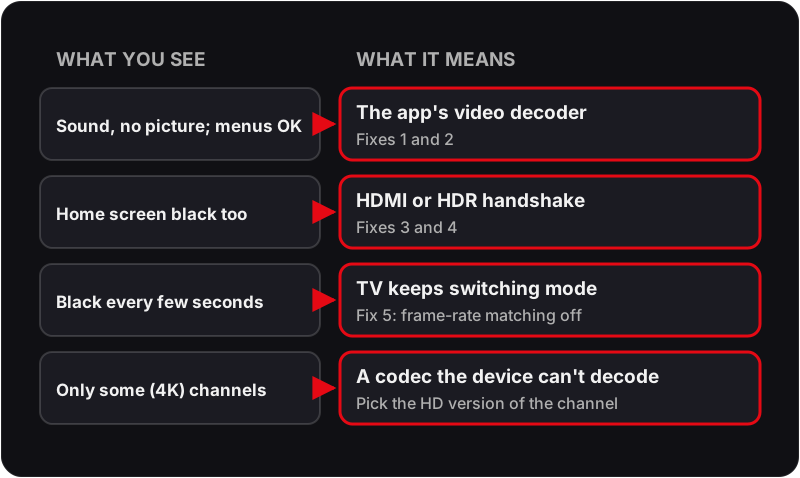
Sound plays but the picture is black on every channel
- Most likely cause: The app's video decoder cannot handle the stream, or the HDMI and HDR handshake between your device and the TV has failed.
- Check: Press Home. If the device menus show normally, the HDMI link is fine and the fault is inside the app. If the home screen is black too, the fault is the HDMI or display-mode handshake.
- Fix: Menus visible: Fix 1, then Fix 2. Menus black: Fix 3, then Fix 4.
- Why this step matters: Audio decodes on a separate path from video, so sound without a picture almost always means the video decoder gave up, not the connection.
Black screen on a handful of channels; the rest play
- Most likely cause: Those channels use a codec or resolution your current player or device does not decode. 4K and HEVC channels are the usual suspects.
- Check: Compare the HD and 4K versions of the same channel. If HD plays and 4K does not, you have a decoder or display-output limit, not a stream fault.
- Fix: Fix 1 first. If you want the 4K feed, work through Fix 4 and Fix 5 to match your display output. If one channel still fails, Fix 7.
- Why this step matters: A single stream failing while its neighbours play points at that stream's format, not at your network or your account.
The picture appears for a second, then drops to black, or flashes black repeatedly
- Most likely cause: The TV is renegotiating its display mode every time the content's frame rate or dynamic range changes. Frame-rate matching and Dolby Vision switching cause exactly this.
- Check: Open the device's display settings and note whether 'match frame rate' or 'match dynamic range' is switched on.
- Fix: Fix 5: turn off frame-rate matching and set the output to a fixed SDR mode, then test the same channel again.
- Why this step matters: Each handshake takes the TV's input offline for a moment. If a stream switches formats often, the TV never settles.
Black screen with a loading spinner that never finishes, or the app freezes
- Most likely cause: This is a connection or playlist fault wearing a black-screen disguise, not a decoding problem.
- Check: Try a channel in a different category, then try the VOD section. If nothing plays anywhere, the app is not reaching the server.
- Fix: The decoder fixes on this page will not help. Follow the loading-channels guide linked below, and if it only happens in the evening, the buffering guide.
- Why this step matters: A decoder failure produces audio or an instant black frame. A connection failure produces a spinner or a frozen frame.
Everything worked yesterday and you changed nothing
- Most likely cause: An app update reset the player setting, a device firmware update changed the display output, or a single stream source needs resetting at our end.
- Check: Look at the app's version and the device's recent update history, then work out whether the fault is on all channels or a few.
- Fix: All channels: Fix 1 and Fix 6. A few channels: Fix 7.
- Why this step matters: Updates often restore defaults, and the default is not always the setting that worked with your TV.
If your symptom is the spinner that never finishes, you are in the wrong guide: start with our fixes for channels that refuse to load at all, which covers login, playlist and connection faults.
Where the settings live on each device
The fixes below name the menu paths for the most common devices.
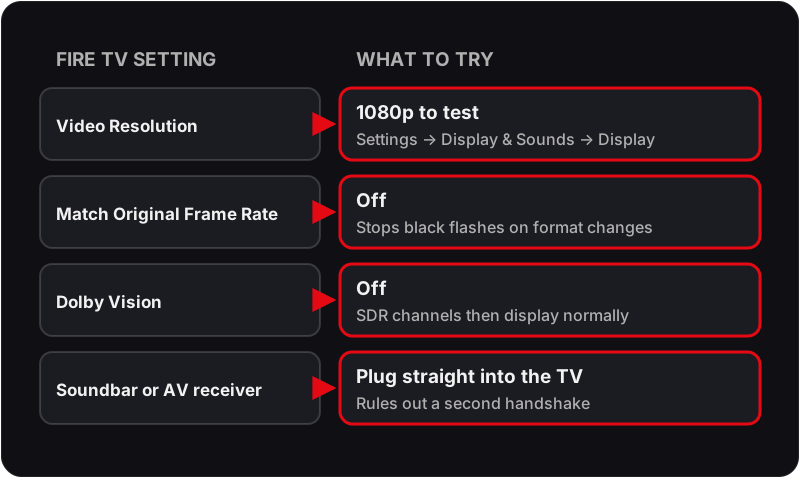
Firestick and Fire TV
Display settings are under Settings → Display & Sounds → Display. Video resolution, match original frame rate and Dolby Vision or HDR output are all on that screen. Inside TiviMate the decoder lives at Settings → Player; inside IPTV Smarters it is the player-engine option in the settings menu, which you can also reach from the playback screen. A stick that connects through a soundbar or AV receiver is more prone to handshake failures: plug it straight into the TV to test, and only move it back once the picture is stable.
Android TV and Google TV boxes
Settings → Device Preferences → Display & Sound holds resolution and dynamic-range options; some manufacturers call the menu "Screen" or "HDMI output". Dynamic range usually has three modes: fixed SDR, automatic switching, and forced HDR. Forced HDR is the one that produces black screens on channels broadcast in SDR, because the TV is asked to display a signal the content does not contain.
Samsung, LG and other Smart TVs
The app runs on the TV itself, so there is no HDMI handshake to fix. A black screen here is nearly always the decoder. Switch the player engine inside the app, and if the app has no alternative engine, try a different IPTV app from the TV's own store and compare the same channel.
iPhone, iPad and Apple TV
Apple devices decode HEVC in hardware, so format problems are rare. A black screen on iOS or tvOS is usually the app's player choice. Close the app fully from the app switcher, reopen it, and switch between the native player and the app's own player in its settings.
Fix 1: Change the Video Player or Decoder in Your IPTV App
- 1In TiviMate: open Settings → Player and try the other decoder option (hardware or software) if your version offers one.
- 2In IPTV Smarters: open the settings and switch the player engine.
- 3Test the same channel after changing the player.
💡 If a channel plays in one player engine and not the other, keep the engine that works — both show the same stream at the same quality.
Fix 2: Watch a Different Version of the Channel (H.264 vs H.265)
- 1Some older devices don't decode H.265 (HEVC), which many 4K feeds use — causing a black screen with sound.
- 2In the channel list, look for the same channel listed again in HD or FHD.
- 3Play that version; HD feeds are usually H.264, which almost every device decodes.
Fix 3: Disconnect and Reconnect the HDMI Cable
- 1Unplug the HDMI cable from both your streaming device and TV.
- 2Wait 10 seconds and reconnect firmly.
- 3Power cycle both the TV and streaming device.
- 4This resets the HDMI handshake which often causes black screen.
Fix 4: Lower Your Display Resolution
- 1On Firestick: Settings → Display & Sounds → Display → Video Resolution → change from 4K to 1080p.
- 2On Android TV: Settings → Device Preferences → Display → Resolution → 1080p.
- 3Test if black screen resolves at the lower resolution.
Fix 5: Disable HDR or Match Content Settings
- 1On Firestick: Settings → Display & Sounds → Display → Match Original Frame Rate → Off.
- 2Also try: Dolby Vision → Off.
- 3HDR/Dolby Vision handshake failures commonly cause black screens on channels that broadcast in SDR.
Fix 6: Update Your IPTV App
- 1Open your app store (Play Store, Amazon Store).
- 2Search for your IPTV app and check if an update is available.
- 3Install the update and restart the app.
- 4An outdated app may fail to decode newer stream formats.
Fix 7: Contact Flickhaven Support
- 1If black screen only affects specific channels, the stream itself may need to be reset.
- 2Message Flickhaven on WhatsApp with your Username and the channel name.
- 3Support can check that channel's source and tell you whether it is a stream fault or a device setting.
Black Screen Questions
Why do I get sound but no picture on IPTV?+
Audio and video are decoded separately. When the video decoder cannot handle the stream's codec or resolution, the audio track keeps playing while the picture stays black. Switching the player engine inside your IPTV app (Fix 1) is the quickest test, because it hands the stream to a different decoder. If that does not help, the stream format itself is the next thing to change (Fix 2).
Does a black screen mean my subscription has expired?+
No. An expired account produces an authorisation error or an empty channel list, not a black screen with the channel list still loading normally. If your categories and channels appear in the app, the account is active and the fault is on the decoding or display side.
Why does IPTV go black every few seconds?+
Repeated black flashes are the TV renegotiating its display mode, not the stream dropping. Frame-rate matching and Dolby Vision or HDR switching make the TV re-sync every time the content changes format. Turn off Match Original Frame Rate and Dolby Vision (Fix 5), set a fixed output, and the flashes usually stop.
IPTV Smarters Pro shows a black screen — what should I try?+
In IPTV Smarters Pro, open the settings and switch the player engine, then test the same channel. If it still stays black, try the HD version of the channel instead of 4K, update the app, and lower the Fire TV or Android TV output to 1080p to rule out an HDR handshake. If one channel stays black in every app, message support with the channel name.
Will changing the video player reduce picture quality?+
No. Both players show the same stream at the same quality. The difference is which decoder handles it and whether that decoder uses your device's hardware acceleration.
If lowering the resolution to 1080p fixes it, do I have to stay at 1080p?+
Not usually. A fix at 1080p tells you the cause is the 4K or HDR handshake, not the stream. Return to 4K output, then turn off frame-rate matching and Dolby Vision switching (Fix 5). If 4K still fails, try a different HDMI port and a cable rated for 4K.
Black Screen Still Not Fixed?
Support runs 24/7 on WhatsApp — send the device, the app and the channel name and we can tell you which side the fault is on.
Keep going with our UK IPTV explained, how the top UK IPTV providers compare and IPTV free trial UK.