IPTV Not Working
with VPN? 7 Fixes, Quickest First
When IPTV is not working with a VPN, the VPN is changing the route between your device and the server. A distant or busy VPN server adds delay, so IPTV buffering with a VPN usually needs a nearby UK server or a faster protocol such as WireGuard. If the app will not connect at all, exclude it with split tunnelling and check the VPN's DNS settings. Test with the VPN off first: if playback is fine, the VPN is the cause.
If your IPTV streams perfectly without a VPN but buffers or won't load when the VPN is on, work through these 7 fixes, quickest first. For faults that happen with the VPN off too, see our IPTV problem-solving guide. Still choosing a provider? Run the same VPN checks during Flickhaven's free IPTV trial before you pay.
💬 Get Help on WhatsApp
Why IPTV Is Not Working With a VPN
A VPN adds a stop between your device and the IPTV server. When that VPN server is far away or busy, every part of the stream arrives later, and IPTV buffering with a VPN on is the usual result. When the VPN app also controls DNS or cuts traffic during reconnects, the IPTV app may not connect at all.
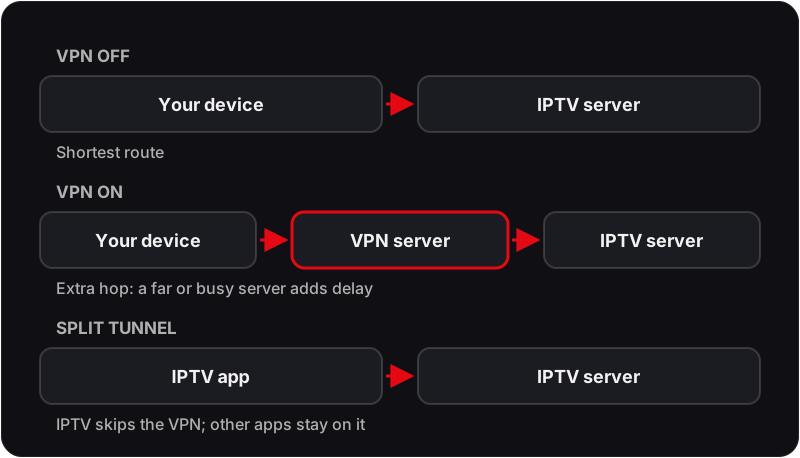
Diagnose Your Problem First
| Your Symptom | Likely Cause | Jump To |
|---|---|---|
| IPTV works fine without VPN, buffers with VPN on | VPN server adds latency or is congested | Fix #2 (nearby server) or Fix #4 (WireGuard) |
| IPTV channels load but freeze every few minutes | VPN kill switch blocking reconnect | Fix #3 (disable kill switch) |
| IPTV works on mobile data but not home broadband (with VPN) | DNS settings conflicting with the VPN | Fix #5 (DNS leak test) |
| IPTV won't load any channels with VPN on | IPTV app is blocked by VPN tunnel | Fix #1 (split tunneling) |
| IPTV works but very slow / low quality with VPN | VPN overhead reducing bandwidth or slow protocol | Fix #4 (WireGuard) or Fix #6 (different server) |
The 7 Fixes (Quickest First)
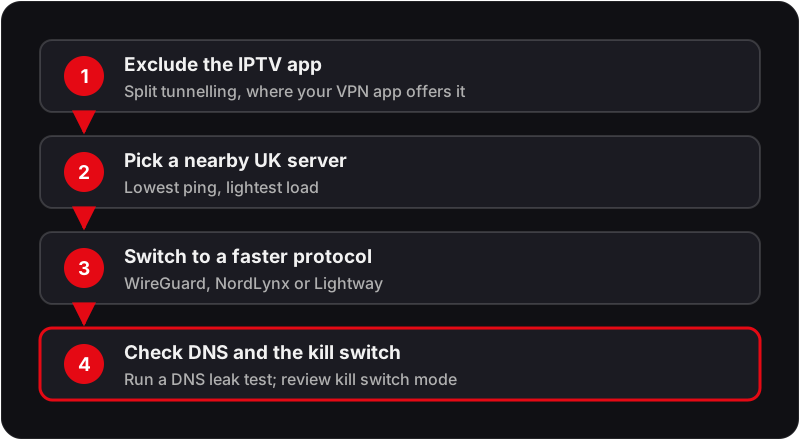
Use Split Tunneling to Exclude Your IPTV App
⭐ Try This FirstSplit tunneling routes your IPTV app outside the VPN tunnel so it connects directly to the IPTV server at full speed, while your other traffic stays encrypted through the VPN.
How to do it
- 1.Open your VPN app settings and find "Split Tunneling" or "App Exclusion".
- 2.Add your IPTV app (IPTV Smarters, TiviMate, SS IPTV, etc.) to the exclusion list.
- 3.Keep the VPN connected — only your IPTV app bypasses the VPN.
- 4.Relaunch your IPTV app and test streaming.
Switch to a Nearby VPN Server
⭐ Very EffectiveVPN servers far from the IPTV server add round-trip delay to every packet, which can cause buffering even on fast connections. For UK IPTV, start with a UK VPN server.
How to do it
- 1.In your VPN app, find the server list and sort by distance or ping.
- 2.Select a UK server — London, Manchester, or Birmingham are ideal.
- 3.If UK servers are crowded (high latency), try Ireland, Netherlands, or Germany.
- 4.Avoid any server outside Europe for UK IPTV.
Disable the VPN Kill Switch
Common FixThe kill switch blocks all internet traffic when the VPN connection drops momentarily — this can interrupt IPTV streams and cause the channel to freeze or disconnect. Disabling it prevents stream interruptions during brief VPN hiccups.
How to do it
- 1.Go to your VPN app settings and find "Kill Switch" or "Internet Kill Switch".
- 2.Toggle it off, or set it to "App-level kill switch" (only blocks the VPN app, not all traffic).
- 3.Reconnect to the VPN and test your IPTV streams.
Change VPN Protocol to WireGuard
Speed FixWireGuard and protocols built on it are usually faster than OpenVPN. If your VPN is set to OpenVPN or IKEv2, switching to WireGuard can reduce buffering.
How to do it
- 1.In your VPN settings find "Protocol" or "Connection Type".
- 2.Switch from OpenVPN (TCP or UDP) or IKEv2 to WireGuard.
- 3.If WireGuard isn't available, try OpenVPN UDP over OpenVPN TCP — UDP is faster for streaming.
- 4.Reconnect and test IPTV.
Fix DNS Leaks
Connectivity FixA DNS leak means your device is still looking up server addresses outside the VPN while it is on. When the device and the VPN disagree about DNS, some apps fail to find the IPTV server at all.
How to do it
- 1.Go to dnsleaktest.com while your VPN is connected.
- 2.Run the Standard test. If you see your ISP's DNS servers, you have a DNS leak.
- 3.In your VPN settings, enable "DNS leak protection" or "Private DNS".
- 4.Alternatively, manually set your DNS to 1.1.1.1 (Cloudflare) or 8.8.8.8 (Google) in your device's network settings.
Try a Different VPN Server City
Quick FixEven within the UK, some VPN servers can be congested — particularly in London during peak evening hours. Switching to a different UK city server can resolve buffering caused by VPN server overload.
How to do it
- 1.In your VPN app, expand the UK server list to see city-level options.
- 2.If you're on a London server, try Manchester, Edinburgh, or Birmingham.
- 3.Most VPN apps show server load or ping — choose servers with green/low load indicators.
Set VPN at Router Level Instead of App Level
Advanced FixInstalling the VPN on your router protects all home traffic and often solves IPTV conflicts — since the VPN operates at the network level rather than per-app. Some IPTV apps that conflict with VPN clients run fine when the VPN is at router level.
How to do it
- 1.Check if your router supports VPN (DD-WRT, OpenWRT, or Asus Merlin routers are common choices).
- 2.Install your VPN provider's router firmware or configure OpenVPN/WireGuard in the router settings.
- 3.Connect devices to the router normally — they automatically use the VPN without running a VPN client.
- 4.You can still use split tunneling at the router level by excluding specific IP ranges.
IPTV Not Working With NordVPN or ExpressVPN?
The same fixes apply to every VPN app; only the setting names differ. In NordVPN, the WireGuard-based protocol is called NordLynx; in ExpressVPN, the fast protocol is called Lightway. Both apps offer split tunnelling on some platforms, so look for it in the app settings on your device and add the IPTV app to the excluded list.
If IPTV is not working with NordVPN or ExpressVPN on one server, try a second UK server before changing anything else. A single busy server is the most common cause, and switching takes seconds. If no UK server works, turn the VPN off and test: if streams play, use split tunnelling for the IPTV app.
IPTV Only Works With a VPN?
The opposite problem has a different cause. If IPTV only works with the VPN on, something on your home connection is stopping the app reaching the server without it: often a router or broadband content filter, or a DNS setting on the device. Check your broadband account and router for content-filter options, try a different DNS server in the device's network settings, and then message support with what you found. For faults that are not about the VPN at all, start with IPTV not loading fixes.
FAQ
QWhy does IPTV stop working when VPN is on?▼
Three main reasons: (1) the VPN server is far from the IPTV server or busy, adding delay. (2) The VPN kill switch cuts traffic each time the VPN reconnects. (3) DNS settings on the device conflict with the VPN, so the app cannot find the server. Split tunnelling and a nearby server fix most cases.
QWhy does IPTV buffer with a VPN?▼
IPTV buffering with a VPN means the extra hop through the VPN server is costing more time or speed than the stream can spare. Pick a nearby UK server with low load, switch to a WireGuard-based protocol, or exclude the IPTV app with split tunnelling. If it still buffers with the VPN off, the cause is elsewhere: see the IPTV buffering fix.
QWhy does my IPTV only work with a VPN?▼
If IPTV only works with the VPN on, something on your home connection stops the app reaching the server without it, such as a router or broadband content filter or a DNS setting. Check your broadband account and router for content-filter settings, try a different DNS server, then message support with what you found.
QShould I use a VPN for IPTV?▼
A VPN is optional. If streams buffer on broadband but play on mobile data, a VPN is one way to test whether your home connection is the difference. If IPTV works fine without a VPN, adding one can introduce new problems without benefit.
QWhat is split tunneling and how does it help IPTV?▼
Split tunnelling routes specific apps outside the VPN tunnel while keeping other traffic encrypted. By excluding your IPTV app from the VPN, streams connect directly to the IPTV server. Many VPN apps offer it on Android and Windows; fewer offer it on iPhone, iPad or Fire TV.
QWhich VPN server is best for IPTV?▼
For UK IPTV, always use a UK VPN server (London, Manchester, Birmingham). Connecting to a distant server adds latency that causes buffering. If UK servers are congested, try Ireland or Netherlands as nearby alternatives.
Best VPN for IPTV UK
Top VPN choices for UK streaming
Fix IPTV Buffering
General buffering solutions
Channels Not Loading
Channels won't play at all
Still Getting IPTV Issues?
Flickhaven support can diagnose VPN + IPTV conflicts for your specific setup. Contact us via WhatsApp.
💬 Get VPN Help on WhatsApp