Flickhaven IPTV UK
IPTV Player for Windows: Set Up IPTV on a PC or Laptop (UK)
IPTV for PC needs one app. For most people the best IPTV player for Windows is IPTV Smarters Pro: install it from the official website, choose Login with Xtream Codes API and enter your server URL, username and password to get the channels, TV guide and films. VLC Media Player is the free fallback: paste your M3U URL into Media, Open Network Stream, with no guide. On Windows 11 in S mode, use MyIPTV Player from the Microsoft Store.
Setting up IPTV on a Windows 11 or Windows 10 PC or laptop in the UK takes about five minutes and no extra hardware. Two options cover almost everyone: IPTV Smarters Pro (full EPG, a TV-guide layout that will feel familiar if you're used to BBC iPlayer or ITVX) or VLC Media Player (free, open-source, nothing to configure beyond pasting a URL). Both pull the same Flickhaven channel list — the difference is EPG and interface polish, not content.
Watching on a TV instead? See IPTV on every device.
On a MacBook or iMac instead, follow IPTV setup on a Mac; for TVs, sticks and phones, the main IPTV installation guide walks through each device step by step. For a Samsung set, see installing IPTV apps on Samsung TVs.
The Best IPTV Player for Windows: Five Options Compared
Five names cover every realistic IPTV player for PC, on Windows 10 and 11. One app people search for constantly — TiviMate — is not among them, because it has never been released for Windows.
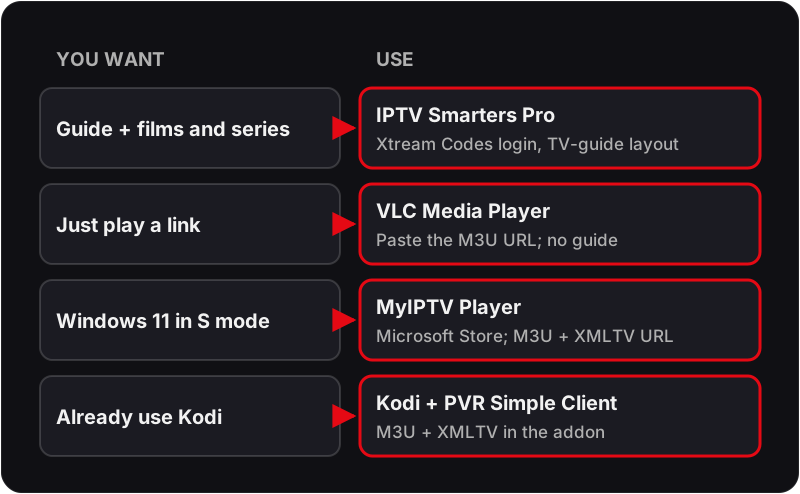
| App | Where from | Login | EPG guide | Best for |
|---|---|---|---|---|
| IPTV Smarters Pro | Official website (desktop installer) | Xtream Codes or M3U | Yes | Most people — TV-guide layout, VOD and series |
| VLC Media Player | videolan.org | M3U URL | No | A no-fuss player that always works |
| MyIPTV Player | Microsoft Store (free) | M3U + XMLTV URL | Yes | Windows 11 S mode, Store-only machines |
| Kodi + PVR IPTV Simple Client | kodi.tv or Microsoft Store | M3U + XMLTV URL | Yes | Existing Kodi users, HTPC setups |
| TiviMate | Not available on Windows | — | — | Android TV only — use Smarters instead |
Method 1: IPTV Smarters Pro for Windows (Recommended)
Method 2: VLC Media Player (Free, No Account Needed)
💡 VLC has no EPG (TV guide) but is completely free and works on any Windows version. Skip the file download entirely and paste the M3U URL straight into the network stream dialog — see the Windows Defender note below for why that matters.
Windows Defender, SmartScreen & the .m3u File Trap
Three Windows-specific snags catch people out on first run, and none of them mean the setup has gone wrong:
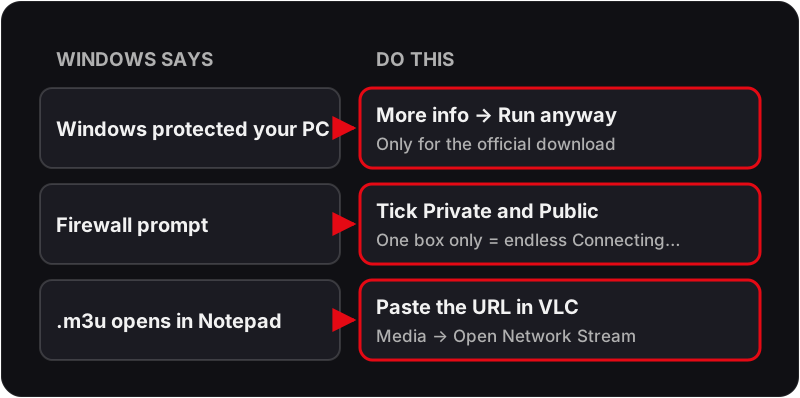
- ▸SmartScreen warning: installing VLC or the Windows build of IPTV Smarters Pro from outside the Microsoft Store can trigger "Windows protected your PC". Click More info → Run anyway — this is Defender flagging an unfamiliar publisher, not a genuine threat, as long as you downloaded from videolan.org or the official Smarters site.
- ▸Firewall prompt on first launch: Windows Firewall asks whether to allow VLC or Smarters network access the first time it tries to reach a stream. Tick both Private and Public networks — ticking only one is the most common reason a channel spins on "Connecting…" and never plays.
- ▸No .m3u file association: Windows doesn't know what to do with a downloaded .m3u playlist file by default, so double-clicking it can open Notepad instead of VLC. Avoid the problem entirely by pasting the M3U URL directly into VLC's Media → Open Network Stream dialog rather than downloading the file at all.
UK Broadband Router Quirks That Cause Buffering on PC
If channels load but buffer repeatedly, the cause is very often the router rather than the app or your line speed — UK ISP-supplied routers apply their own traffic shaping, and it behaves differently across providers:
- ▸BT Smart Hub 2: Smart Setup's built-in traffic prioritisation and any active "Family & Content Controls" schedule can throttle sustained video streams during the UK's 6–10pm peak viewing window. Check Settings → Family & Content Controls and confirm your PC isn't caught by a scheduled restriction.
- ▸Virgin Media Hub 3/4/5: the default Advanced Settings → Firewall level ("High") inspects long-lived HTTP streams aggressively and can drop a connection mid-stream, which shows up as random buffering rather than an obvious error. Lowering it to "Medium" in the Virgin Media web interface is usually enough.
- ▸TalkTalk HomeSafe: the content-filtering system blocks by category and occasionally flags streaming-server IP ranges under "Filesharing" or "Anonymisers". If channels fail consistently, turn off HomeSafe for your PC's device profile in your TalkTalk account.
- ▸EE Smart Hub: per-device bandwidth caps set in the EE Smart Hub app can silently limit one device below what's needed for the higher-bitrate channels. Check the app's Device Manager and remove any cap from your PC.
A wired Ethernet connection sidesteps most of this — Wi-Fi congestion and router-level shaping both apply more heavily over wireless.
Windows 11 vs Windows 10 — Anything Different?
Nothing in the apps themselves: IPTV Smarters Pro, VLC, MyIPTV Player and Kodi behave identically on both. Two Windows 11 specifics are worth knowing:
- ▸S mode: some budget Windows 11 laptops ship in S mode, which only allows Microsoft Store apps and silently refuses the VLC and Smarters installers. Either switch out of S mode (Settings → System → Activation → Switch to Windows 11 Home/Pro — free and one-way) or install MyIPTV Player from the Store and paste your M3U URL there.
- ▸HEVC 4K channels: VLC ships its own decoders, so 4K HEVC streams play without extra downloads. The paid HEVC extension is for the built-in Windows media apps, which you do not need for IPTV; if a 4K channel will not play in Smarters, try the same channel in VLC.
Watching IPTV on a Laptop
A laptop is the most flexible IPTV device in the house — it works at a desk, in bed, in a hotel room or plugged into a television over HDMI. Three things make the difference between a good and a frustrating laptop setup:
- ▸Power: Windows throttles the CPU on battery, which shows up as dropped frames on 4K streams. Plug in for anything longer than a highlights reel, or set the power mode to Best Performance.
- ▸Network: laptop Wi-Fi is weaker than a plugged-in box. A £10 USB-to-Ethernet adapter fixes peak-time buffering more reliably than any app setting; on public Wi-Fi, expect throttling and use SD channels.
- ▸On the TV: an HDMI cable turns the laptop into a set-top box. Press Win + P and choose Duplicate or Second screen only, set the TV as the audio output in the sound settings, and use VLC's full-screen mode (F11) so the interface disappears.
IPTV on Windows — Frequently Asked Questions
Can IPTV work on a laptop?+
Yes. Any Windows laptop from roughly the last eight years handles HD IPTV, and most from the last five handle 4K, because the work is done by the same apps as on a desktop — IPTV Smarters Pro, VLC or MyIPTV Player. Plug the laptop into power for long sessions, prefer a USB Ethernet adapter over hotel or café Wi-Fi, and use an HDMI cable if you want the stream on a television.
Does IPTV work on Windows 11?+
Yes, and the setup is the same as on Windows 10: install IPTV Smarters Pro or VLC, enter your Xtream Codes login or M3U URL, and play. The one Windows 11 catch is S mode, found on some budget laptops — it blocks installers from outside the Microsoft Store. Either leave S mode (Settings → System → Activation) or use MyIPTV Player, which installs from the Store.
What is the best IPTV player for Windows?+
IPTV Smarters Pro for most people — it has the TV-guide layout, VOD and series sections, and takes Xtream Codes directly. VLC is the fallback that always works but has no EPG. MyIPTV Player is a free Microsoft Store option with M3U and XMLTV guide support, and Kodi with the PVR IPTV Simple Client suits people who already use Kodi. TiviMate does not exist for Windows.
Is there a TiviMate for Windows PC?+
No. TiviMate is an Android TV app only; there is no Windows, Mac or iOS version, and the downloads advertised as 'TiviMate for PC' are Android emulators wrapped around the Android app, which is more trouble than it is worth. On Windows, IPTV Smarters Pro is the closest experience, with VLC as the lightweight alternative.
Can I watch IPTV in a web browser on Windows?+
Rarely well. Most IPTV channels are delivered as MPEG-TS streams that Chrome and Edge cannot play natively, so browser-based players either fail or only work for the minority of HLS channels. Use an app instead — VLC takes about a minute to set up and plays every stream type your subscription includes.
Start Watching on Your PC Today
Free 24-hour trial — no credit card required.
For the full picture, see these guides: complete IPTV guide, IPTV in the United Kingdom, complete best IPTV UK guide and IPTV free trial UK.