Flickhaven IPTV UK
IPTV on iPhone and iPad: Setup, Best Apps and Fixes (UK)
Getting IPTV on iPhone or iPad takes one IPTV app for iOS from the App Store, with no jailbreak. Install IPTV Smarters Pro or GSE Smart IPTV, choose the Xtream Codes login, and paste the server URL, username and password from your WhatsApp message. The channels, guide and films then load. The same IPTV app for iPhone works on iPad, and the same login works on your TV. On mobile data, keep the player on screen so iOS does not pause it.
Setting up IPTV on iPhone or iPad is straightforward — both IPTV Smarters Pro and GSE Smart IPTV are available directly from the UK App Store with no jailbreak required. The EPG shows kick-off times in local GMT/BST, so fixtures line up with the clock on your phone rather than needing a timezone conversion.
For TVs and streaming sticks, go to the device setup hub.
The same credentials work on the big screen: see IPTV on Apple TV for the tvOS version of these steps, or the IPTV installation guide for every device for anything else in the house.
The best IPTV app for iOS: Smarters or GSE
Both apps take the same Xtream Codes login, so the choice is about layout. IPTV Smarters Pro is the simpler all-rounder, with live TV, films and series in one place. GSE Smart IPTV has the fuller TV guide and can cast to a Chromecast. The four steps are the same in either:
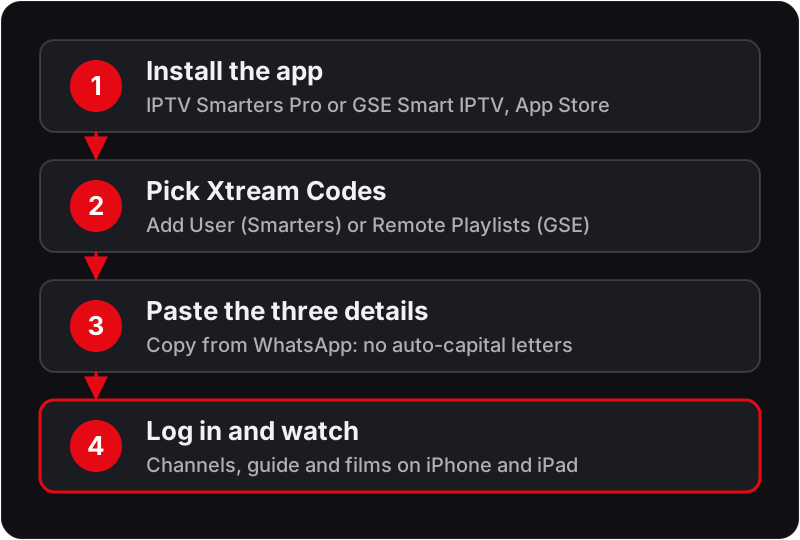
Method 1: IPTV Smarters Pro on iPhone / iPad
Method 2: GSE Smart IPTV on iPhone / iPad (Best EPG)
💡 GSE Smart IPTV has the best EPG TV guide experience on iOS — recommended for UK sports viewers.
What to enter, and where the settings live on iOS
Both apps ask for the same credentials, and most first-run problems come from a typing slip rather than from the app.
The credential fields
- Name: a label for the playlist. Anything will do.
- Username and password: case-sensitive. iOS auto-capitalises the first letter of a text field by default, so look at what you typed before you tap Login. Pasting from your WhatsApp message avoids the problem entirely.
- Server URL: the full address as sent, including http:// and the port number after the colon. Autocorrect sometimes inserts a space after a full stop; delete it if it appears.
IPTV Smarters Pro on iOS
The settings gear on the home screen holds the player choice, the stream format and the EPG refresh. If a channel plays audio with no picture or stops after a second, change the player first and the stream format second, then reopen the channel. The EPG tab builds the guide from your Xtream login automatically; a guide that shows an hour out is corrected with the time offset in the same settings menu.
GSE Smart IPTV on iOS
Playlists live under Remote Playlists in the side menu; tap an entry to edit the credentials rather than adding a second copy. The player setting lets you switch between the iOS native player and the app's own, which is the first thing to try when a channel will not play. The EPG section has its own refresh control. For the full walkthrough with every screen, see our GSE Smart IPTV setup guide for iPhone and iPad.
The channel list loads but a stream does not
If categories and channels appear, the credentials are right and the app can reach the server. Work through these in order:
- 1Try a channel in another category, then something from the movies and series library. If those play, the fault is the one stream. Note its name for support.
- 2Switch the player inside the app (native versus the app's own player) and reopen the same channel. The two decode differently, and one often plays what the other will not.
- 3If the app offers a choice of stream format, try the other one. This fixes most channels that start and stop within a second.
- 4On mobile data, confirm Low Data Mode is off for your mobile data plan and Low Power Mode is off for the phone, then move to Wi-Fi to see whether the fault follows you.
- 5If a VPN is running, pause it and try again. A VPN server far from the UK adds enough delay to stall a live stream on a phone that would be fine on a TV.
- 6Check Settings → General → Date & Time is on Set Automatically. A wrong clock breaks the secure connection to the server even though the earlier channel list still shows.
- 7Still nothing? Message support on WhatsApp with the channel name, the app, and whether you are on Wi-Fi or mobile data.
IPTV on iPad: Split View, HDMI and the Same Login
- ▸Landscape and Split View: both players run in landscape, and on recent iPads you can keep the stream in one pane while using another app alongside it. Picture in Picture depends on the app and the player selected; the native player is the one most likely to support it.
- ▸A wired TV connection: an iPad with a USB-C or Lightning-to-HDMI adapter can output the stream to any TV without AirPlay or a Chromecast, which is useful in a hotel room or a holiday let.
- ▸The same login: your credentials work on iPhone, iPad and the TV. How many can stream at once depends on the connection count of your plan.
If a Player Isn't Showing in Your App Store
Apple periodically restricts which IPTV-capable players are listed in a given App Store storefront, and the UK catalogue doesn't always match the US one. Before assuming an app has been pulled entirely:
- ▸Check your account's actual region: Settings → [your name] → Media & Purchases → View Account → Country/Region. Accounts set up while travelling, or via a US Apple ID inherited from a previous phone, sometimes stay on a US region without you noticing.
- ▸Switching an existing Apple ID's region requires any App Store balance to be spent down first — Apple won't let you change region with credit sitting on the account.
- ▸If your preferred player genuinely isn't listed for the UK storefront, the common workaround is installing via a public TestFlight beta link from the developer (where one exists) rather than the standard App Store listing — this doesn't require a jailbreak, only the free TestFlight app.
Why Long Streams Can Cut Out on Mobile Data
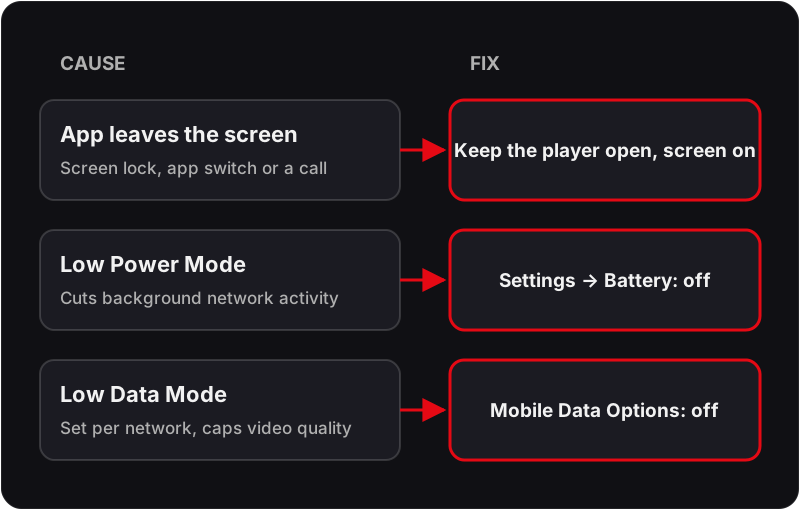
iOS suspends background network activity aggressively — usually within around 30 seconds of the app leaving the foreground (screen locked, app-switched, a call coming in). For a full 90-minute match watched on the train this is the single most common cause of a stream dying mid-way, and it isn't a Flickhaven or app fault. A few settings reduce it:
- ▸Keep the player in the foreground with the screen on during playback — this is the only fully reliable fix, since backgrounding is an iOS system behaviour the app can't override.
- ▸Turn off Low Power Mode while streaming (Settings → Battery) — it throttles background refresh and network activity further.
- ▸Check Settings → Mobile Data → Mobile Data Options and switch off Low Data Mode — iOS applies it per network rather than per app, and it can cap video quality on mobile data. Also make sure Settings → [App Name] → Mobile Data is on for the player.
Cast to Your TV from iPhone
Once IPTV is set up on your iPhone, you can cast to a bigger screen:
- ▸AirPlay: Mirror your iPhone screen to any Apple TV or AirPlay-compatible TV.
- ▸Chromecast: GSE Smart IPTV supports Chromecast — tap the cast icon in the player.
iPhone and iPad IPTV Questions
What is the best IPTV app for iOS?+
For most people, IPTV Smarters Pro: it is free to download, takes an Xtream Codes login and puts live TV, films and series in one app. GSE Smart IPTV is the pick if you want a fuller TV guide and Chromecast support. Both run on iPhone and iPad with the same login.
Do I need to jailbreak my iPhone to use IPTV?+
No. Both players install from the App Store like any other app, and your Flickhaven credentials are entered inside the app. A jailbreak adds nothing and removes the security and update path you get from a standard install.
Can I download programmes to watch offline?+
No. Live channels are streamed as they are broadcast, and the movies and series library is streamed on demand rather than downloaded to the device. You need a connection for the whole of playback, which is why the cellular settings above matter on a long journey.
Does streaming IPTV drain the battery quickly?+
Video decoding runs in hardware on iPhone and iPad, so the player itself is efficient. Screen brightness and a weak cellular signal cost far more than the stream does. On a long watch, lower the brightness a little and prefer Wi-Fi where you have it.
Will it work on 4G and 5G, or only Wi-Fi?+
It works on mobile data. HD streams need a steady connection rather than a fast one, so a stable 4G signal is usually fine and 5G is comfortable. Check that Low Data Mode is off for your mobile data (Settings → Mobile Data → Mobile Data Options), because it can cap video quality without telling you.
Start Watching on Your iPhone Today
Free 24-hour trial — no credit card, set up in under 3 minutes.
For the full picture, see these guides: what IPTV is and how it works, how IPTV works in the UK, complete best IPTV UK guide and IPTV free trial UK.