Flickhaven IPTV UK
IPTV on Panasonic TV: The Route for Fire TV, TiVo and Older Sets
How you get IPTV on a Panasonic TVdepends on the system it runs. Most of Panasonic's 2024 range runs Fire TV, which installs IPTV players the same way as a Fire TV Stick. Some entry-level 2024 models run TiVo instead. Older Panasonic sets run My Home Screen, which has a small app store with no Android apps. If your model has no suitable player, a streaming stick in a spare HDMI port runs any mainstream player.
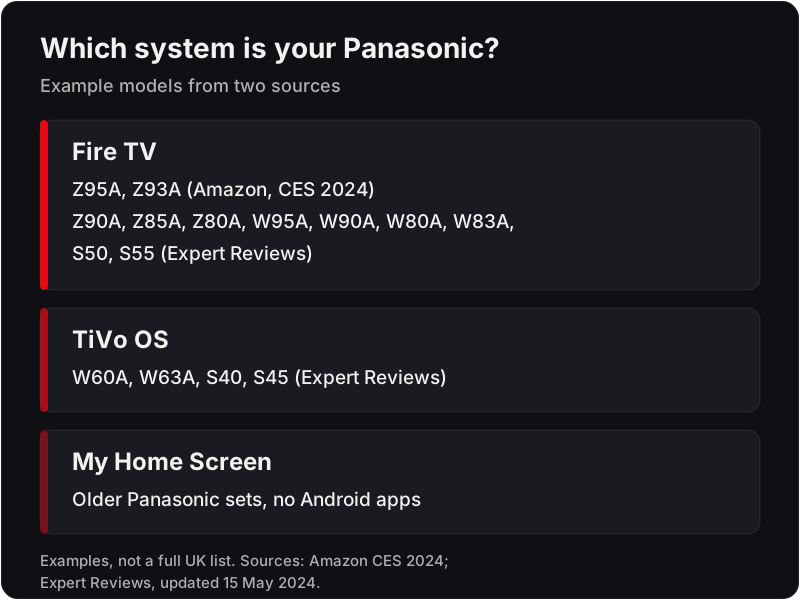
Which system your Panasonic TV runs
Your Panasonic runs one of three systems: Fire TV, TiVo or My Home Screen, and the model number tells you which. Find it on the label on the back of the TV or on the box, then match it against the examples below and the spec sheet for your model. If the home screen offers the Amazon Appstore, you have a Fire TV set.
Amazon announced at CES 2024 that Panasonic would bring Fire TV built-in to its smart TVs starting in 2024, as a global collaboration, and named the Z95A and Z93A OLEDs (Amazon's CES 2024 announcements). Expert Reviews, in a page updated on 15 May 2024, lists more Fire TV models and the entry models that use TiVo OS instead (Expert Reviews on Panasonic's Fire TV and TiVo OS ranges). Treat these model names as examples from those two pages, not as a complete UK list. Later ranges continue the Fire TV and TiVo split; check the spec sheet for your model.
| System | Example models (source) | Where apps come from | IPTV route |
|---|---|---|---|
| Fire TV | Z95A, Z93A (Amazon, CES 2024); Z90A, Z85A, Z80A, W95A, W90A, W80A, W83A, S50, S55 (Expert Reviews) | Amazon Appstore | Install a player as on a Fire TV Stick |
| TiVo OS | W60A, W63A, S40, S45 (Expert Reviews) | TiVo's own app store | Use a streaming stick |
| My Home Screen | Older Panasonic sets | A small app store, no Android apps | Use a streaming stick |
IPTV on a Panasonic Fire TV
On a Panasonic Fire TV you install an IPTV player the same way you would on a Fire TV Stick, because both run Fire TV and both use the Amazon Appstore. This is the easy case: no extra hardware, and the TV remote does the whole job.
The full method is in the Fire TV Stick IPTV setup guide, and every step there applies to the TV. In outline:
- Open the Amazon Appstore on the TV and install Downloader, the app the Fire TV Stick guide uses to fetch players.
- In the TV's settings, allow Downloader to install apps from unknown sources. Menu names on a TV can differ from the stick; check in your TV.
- Use Downloader to install the player you want, such as IPTV Smarters Pro or TiviMate.
- Open the player and enter your login, as set out in the login section below.
Fire TV built into a Panasonic is still a TV first, so the settings menu also holds picture, sound and input options that a stick does not have. If you cannot find a setting that the stick guide names, search the TV's own settings for “unknown sources”, or message support with your model number.
Because the method is the same, the Xtream Codes setup guide for Fire TV also works on the TV, field by field. It shows where the server URL, username and password go in the common players, which saves guessing at each screen.
IPTV on a Panasonic TiVo TV
On a Panasonic TiVo TV, the practical route is a streaming stick, because we could find no player whose developer lists TiVo OS as a supported platform. The TiVo models are the entry end of the 2024 ranges: Expert Reviews names the W60A, W63A, S40 and S45.
TiVo OS has its own app store, separate from the Amazon Appstore, so the Fire TV method above does not carry over. If a developer later lists TiVo OS on its official page, that player becomes an option; until then, plug a stick into a spare HDMI port and set the player up on the stick. The TV still handles the picture and sound as normal.
IPTV on an older Panasonic with My Home Screen
An older Panasonic with My Home Screen cannot run the usual IPTV players, because My Home Screen does not run Android apps. Its app store is small. SmartOne IPTV's developer says its player supports Panasonic TVs on the Foxxum app platform (smartone-iptv.com, fetched 18 Oct 2026). Check whether it appears in your TV's app store; if it does not, use a streaming stick.
That rules out the apps most IPTV guides assume, including the ones in the Fire TV Stick guide. An IPTV login needs a player that reads Xtream Codes or M3U details and holds a programme guide, and that is the piece a My Home Screen set is missing.
For most My Home Screen sets the practical answer is a streaming stick. The TV keeps doing what it does well, showing the picture, and the stick does the app work. The stick sits on its own HDMI input, so the TV's other inputs and apps are left as they are.
If you were thinking of replacing the TV anyway, the table above shows that the newer Panasonic ranges split between Fire TV and TiVo, so check the spec sheet before you buy if you want IPTV without a stick.
The streaming stick route
The easiest way to get IPTV on a Panasonic TV with no player app is a streaming stick in a spare HDMI port. The stick runs the player, and the TV simply shows that HDMI input.
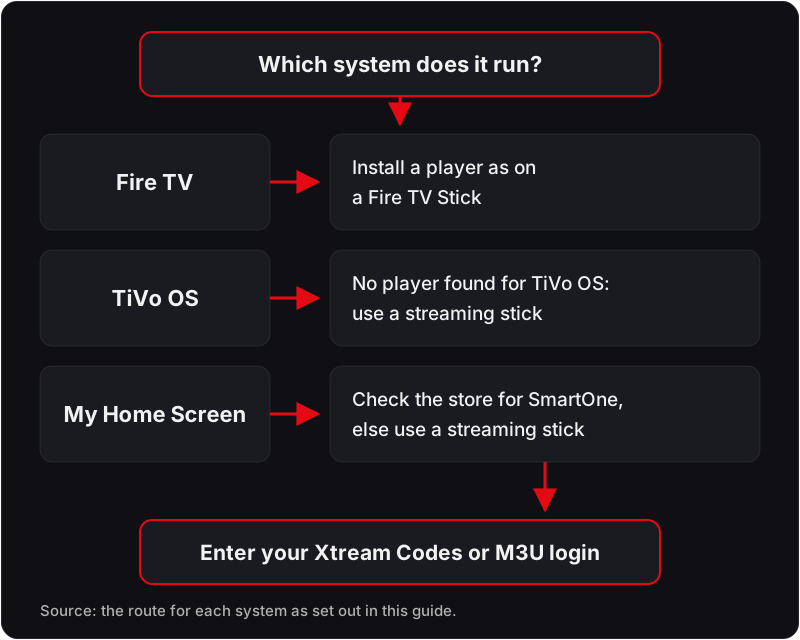
A Fire TV Stick is the simplest pick for a Panasonic owner, because the same Fire TV Stick IPTV setup guide covers both the stick and a Panasonic Fire TV. Set the TV to the stick's HDMI input, follow the guide on the stick, and the Panasonic's own system no longer matters.
The same logic applies to other brands. A Hisense TV running IPTV and an IPTV setup on a Philips TV each depend on their own system too, and the stick works the same way on both. The IPTV devices hub lists every set-up guide by device.
Entering your login: Xtream Codes or M3U
Flickhaven gives you two sets of login details, and either goes into the player: an Xtream Codes login (server URL, username and password) or an M3U playlist link. Choose Xtream Codes where the player offers it.
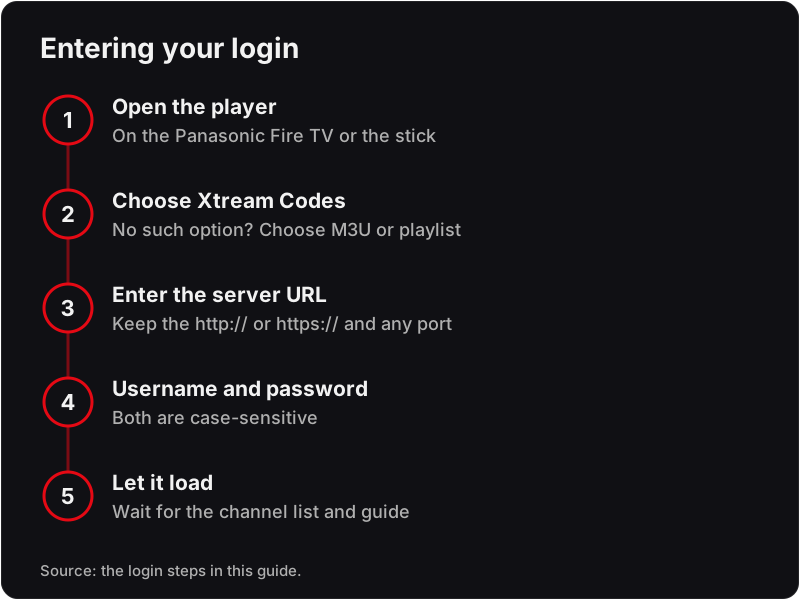
- Open the player on the Panasonic Fire TV or on the stick.
- Choose the Xtream Codes option. If the player has none, choose M3U or playlist instead.
- Enter the server URL exactly as sent, including the http:// or https:// prefix and any port number.
- Enter the username and password. Both are case-sensitive.
- Let the channel list and programme guide finish loading before you start watching.
The Xtream Codes IPTV explainer covers what each field means, and what an M3U playlist is explains the link option for players that only take a playlist.
You can try all of this before paying. The free 24-hour IPTV trial needs no card and streams on one device at a time, so you can check it on your Panasonic first. If you continue, the 1-month plan is £15.00.
If channels will not load on the Panasonic
When IPTV does not work on a Panasonic, the cause is usually the login entry, a player that does not suit the TV's system, or a connection still in use elsewhere. Check these in order:
- The server URL. Retype it with the exact prefix and port; a missing “s” in https or a dropped port number is a common slip.
- The player. On a TiVo or My Home Screen set, move to a stick; on a Fire TV set, try the M3U link if the player lacks an Xtream Codes option.
- Another device. The trial streams on one device at a time, so stop playback elsewhere and retry.
The guide to IPTV not loading channels works through the remaining causes. For help with your model, message WhatsApp support with the model number; support is 24/7.
Questions people ask about IPTV on a Panasonic TV
Does my Panasonic TV have Fire TV built in?+
Most of Panasonic's 2024 range does, according to Expert Reviews. Amazon named the Z95A and Z93A, and Expert Reviews lists the Z90A, Z85A, Z80A, W95A, W90A, W80A, W83A, S50 and S55. Check the spec sheet for your model.
Can I install IPTV Smarters on a Panasonic TV?+
On a Panasonic Fire TV, yes, using the Fire TV Stick method. On a TiVo set, we could find no player whose developer lists TiVo OS, so use a streaming stick. On a My Home Screen set, SmartOne IPTV's developer says it supports Panasonic TVs on the Foxxum platform; check your TV's app store, and if it is not there, use a streaming stick.
Can I get IPTV on an older Panasonic TV?+
Yes, through a streaming stick in a spare HDMI port. Older sets run My Home Screen, which does not run Android apps.
Does a Panasonic TiVo TV support IPTV apps?+
We could find no player whose developer lists TiVo OS as a platform, so a streaming stick is the practical route.
Can I load an M3U playlist on a Panasonic TV?+
Yes, inside a player on a Panasonic Fire TV or on a streaming stick. Paste the M3U link into the player's playlist option.
Want to try it on your Panasonic first?
Start the free 24-hour trial on WhatsApp: no card, one device at a time. Support is 24/7 on WhatsApp.
No credit card · No contract · Instant activation
See also: IPTV on LG Smart TV · Xtream Codes IPTV Explained · What Is an M3U Playlist?.