Flickhaven IPTV UK
How to Get IPTV on a Hisense TV, System by System
How you get IPTV on a Hisense TV depends on the system it runs. Hisense makes TVs on VIDAA, its own system, and some ranges run Google TV or Roku instead. Google TV models install a player from the Play Store. VIDAA has its own smaller app store with no Android apps, and its player choice can change by model and country. If the player you want is missing, a streaming stick in a spare HDMI port runs any mainstream player.
First, find out which system your Hisense TV runs
Look at the apps on the home screen: the Google Play Store means Google TV or Android TV, a Roku home screen means Roku, and anything else is VIDAA. That one check decides which route to IPTV on Hisense TV applies to you, because the three systems install apps in different ways.
A Google TV or Android TV model asks you to sign in with a Google account during setup, and the Play Store sits among its apps. A Roku model opens on Roku's own home screen and adds apps from the Roku Channel Store. If you see neither, the TV runs VIDAA, Hisense's own system. To confirm, open Settings and look for the System or About page, which names the software on the set.
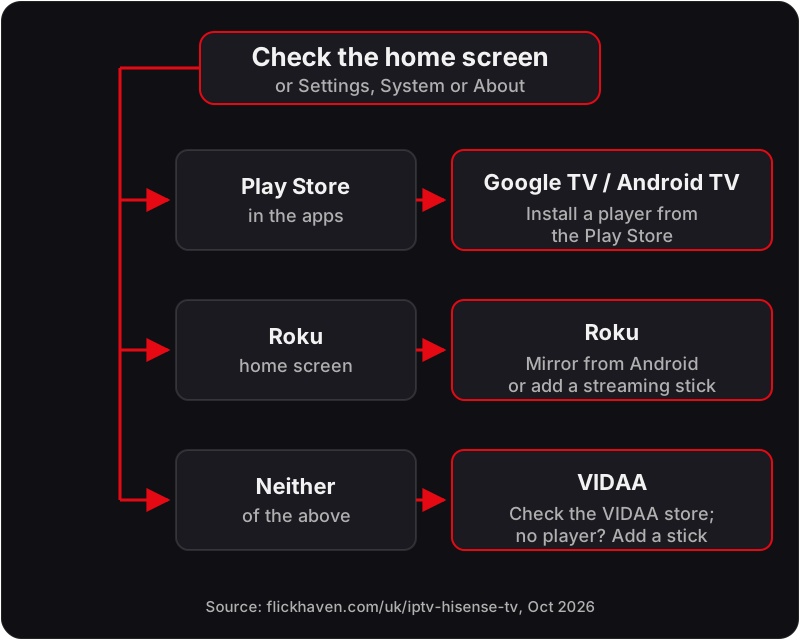
Once you know the system, go to the matching section below. The IPTV setup guides for every device cover other TV brands if you have more than one set in the house.
IPTV on a Hisense VIDAA TV
Yes, sometimes: a VIDAA TV can run an IPTV player only if one is offered in its own VIDAA app store, and that list is short and changes by model and country. VIDAA does not run Android apps and has no Google Play Store, so every Play Store or APK guide you find online does not apply to it.
Hisense's own UK blog describes VIDAA U as its smart system with its own app store (uk.hisense.com). The store is smaller than Google's, and IPTV players appear in it only where the app's developer has built a VIDAA version. So the useful question is not “which app is best” but “does the developer support VIDAA at all”. Here is what three player developers say on their own sites, fetched 18 Oct 2026:
| Player app | What the developer says about VIDAA | Source |
|---|---|---|
| SmartOne IPTV | States it is compatible with VIDAA OS TVs, naming Hisense | smartone-iptv.com, fetched 18 Oct 2026 |
| M3U IPTV | Its compatibility table marks VIDAA OS as “TBA” | m3u-ip.tv, fetched 18 Oct 2026 |
| Smart IPTV (SIPTV) | The developer does not list VIDAA; its builds are for Samsung Tizen, LG and Android, Google TV and Fire TV devices | siptv.app, fetched 18 Oct 2026 |
A developer's claim of support is not the same as the app being in your TV's store, so search the VIDAA store on your own set before you rely on it. Some VIDAA players ask you to activate the TV on the developer's website before a playlist loads, and that can carry a fee. Check the app's activation page on the developer's own site before you pay anything; the sources above are SmartOne IPTV, M3U IPTV and Smart IPTV.
If your VIDAA store has no player that accepts an Xtream Codes login or an M3U link, skip ahead to the streaming stick route. It is the reliable fix on any Hisense that has a free HDMI port.
IPTV on a Hisense Google TV or Android TV
On a Hisense Google TV or Android TV model, install an IPTV player from the Google Play Store and sign in with your login, the same way as on any Android-based TV. Some Hisense ranges run Google TV, and on those sets the full Play Store catalogue of players is open to you.
- Open the Google Play Store from the home screen and search for an IPTV player that accepts Xtream Codes or M3U.
- Install it, open it and choose the Xtream Codes option if it offers one.
- Enter your server URL, username and password, then let the channel list and guide load.
The Android TV IPTV setup guide names the players and walks through each screen, and the Google TV and Chromecast set-up steps cover the Google TV home screen in particular. A few players activate by the TV's MAC address and charge per TV. Smart IPTV is one: its developer lists a one-time fee of 5.49 EUR for each TV or device on its activation page (siptv.app/activation). Players that take an Xtream Codes login need no activation of the TV.
IPTV on a Hisense Roku TV
IPTV works on a Hisense Roku TV only through a workaround, because Roku's Channel Store does not offer the open IPTV players found on Android. What Hi-Fi? reported in September 2019 that Hisense would launch its first Roku TVs in the UK (whathifi.com), so some Hisense sets in UK homes run Roku.
On a Roku TV you have two practical options. You can mirror a player from an Android phone to the TV, which works but ties up the phone for the whole programme. Or you can plug a streaming stick into a spare HDMI port and use the stick's own player, which is the steadier choice for regular viewing. The guide to IPTV on Roku explains the mirroring method and its limits in full.
The streaming stick route for any Hisense
The easiest way to get IPTV on an older Hisense TV, or on any model whose store lacks a player, is a streaming stick in a spare HDMI port. The stick brings its own app store, so the TV's system no longer matters.
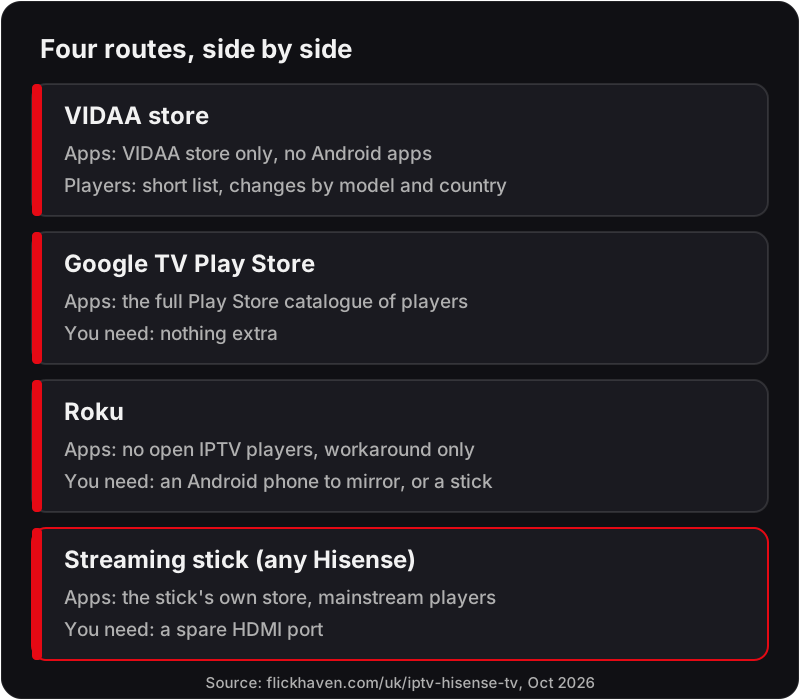
A Fire TV stick and a Google TV streamer both run the mainstream IPTV players, including the ones that accept an Xtream Codes login. Plug the stick into the TV, power it from its adapter, switch the TV input to that HDMI port and install a player from the stick's store. From then on you use the stick's remote and its home screen, and the Hisense acts as the screen.
The Firestick IPTV setup guide covers the Amazon stick step by step. If another TV in the house is a different brand, the IPTV guide for Panasonic TVs and the IPTV guide for Philips TVs follow the same system-first approach.
Before you buy anything, you can test whichever route you choose. The free 24-hour IPTV trial needs no card and streams on one device at a time, so you can check the picture on your own Hisense first. After the trial, the 1-month plan is £15.00.
Entering your login: Xtream Codes or M3U
Type in the Xtream Codes login Flickhaven sends (a server URL, a username and a password), or paste the M3U link if your player only takes a playlist. Both carry the same channels, and both work in any player that accepts them.
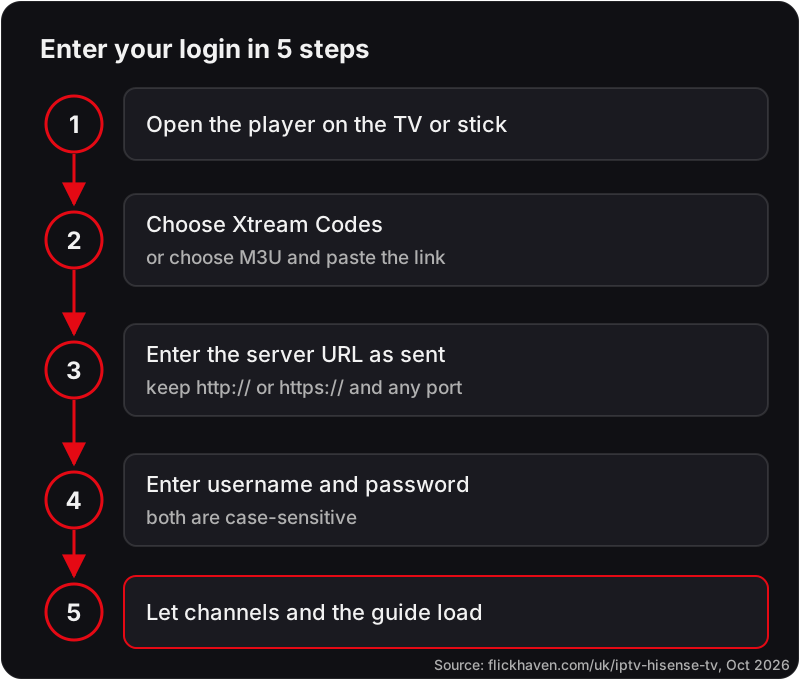
- Open the player app on the TV or the stick.
- Choose Xtream Codes (sometimes called Xtream API) if it is offered; otherwise choose M3U and paste the link.
- Enter the server URL exactly as sent, including the http:// or https:// prefix and any port number.
- Enter the username and password. Both are case-sensitive.
- Let the channel list and programme guide load before you start browsing.
Typing a long M3U link with a TV remote is slow, so Xtream Codes is usually quicker on a Hisense. The Xtream Codes login explained page shows where each field goes, and the M3U playlist guide explains when a playlist link is the better fit. If a field is rejected, message WhatsApp support, which runs 24/7.
What to avoid on a VIDAA TV
No, installing IPTV apps on a Hisense VIDAA TV from a USB stick is not a route that works: VIDAA does not run Android apps, so an APK file copied onto a USB stick will not install. Guides that promise a way round this ask you to change the TV's software in ways Hisense does not offer.
Be wary of three things in particular. Avoid any download that claims to be a VIDAA version of an Android player, because it does not come from the TV's own store. Avoid paying an activation fee anywhere other than the developer's own website. And avoid sellers who say their service works on every Hisense without asking which system yours runs. If the VIDAA store has no suitable player, a streaming stick is the safe fix.
FAQ
Can I install an IPTV app on a Hisense VIDAA TV?+
Only if a player is offered in your TV's VIDAA app store. SmartOne IPTV's developer states it supports VIDAA OS TVs, M3U IPTV marks VIDAA as "TBA", and the Smart IPTV developer does not list VIDAA.
Does Hisense VIDAA have the Google Play Store?+
No. VIDAA has its own app store and does not run Android apps, so Play Store and APK guides do not apply to it.
How do I find which system my Hisense TV runs?+
Look at the home screen: the Play Store means Google TV or Android TV, a Roku home screen means Roku, and anything else is VIDAA. Settings, under the System or About page, names the software.
Can I use an M3U playlist on a Hisense TV?+
Yes, in any player that accepts M3U, whether it runs on the TV or on a streaming stick. An Xtream Codes login is usually quicker to type with a remote.
Does IPTV work on a Hisense Roku TV?+
Only through a workaround: mirroring a player from an Android phone, or plugging a streaming stick into a spare HDMI port.
Try it on your own Hisense first
Start the free 24-hour trial on WhatsApp: no card, one device at a time. Support runs 24/7.
No credit card · No contract · Instant activation
See also: IPTV on Android TV · IPTV on Roku · IPTV on Firestick.