Perfect Player IPTV
Firestick Setup and Review
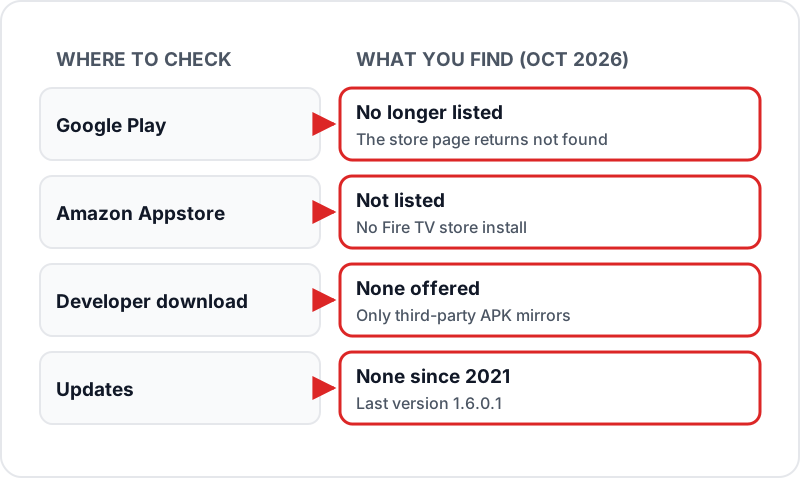
Perfect Player IPTV is a lightweight M3U player that is no longer in Google Play or the Amazon Appstore and has had no updates since 2021, so there is no official download. If it is already on your Firestick, paste your M3U link under Settings, Playlist and your XMLTV link under Settings, EPG, then update both. It cannot take an Xtream Codes login. For a new setup, use a maintained player instead.
Perfect Player is a free, lightweight IPTV player that runs on M3U playlists and XMLTV guides. It is no longer in Google Play or the Amazon Appstore and has not been updated since 2021. Here's how to set it up if it is already on your device — or a free Flickhaven trial playlist while you test.
Perfect Player IPTV in 2026: Where It Stands
Before you go looking for a Perfect Player IPTV download, know what you will find. The app is made by Niklabs Software and its Google Play listing (com.niklabs.pp) now returns “not found”. It is not in the Amazon Appstore either, and the developer offers no download of its own. The copies still circulating are APKs on third-party mirror sites, and the newest of those is version 1.6.0.1 from 2021.
An app with no updates and no official source is a risk on a device that sits on your home network: you cannot confirm a mirrored APK has not been changed, and nothing will fix it if a Fire OS update breaks it. If Perfect Player is already installed and working, the setup below still applies. For a new Firestick setup, use a maintained player such as TiviMate or IPTV Smarters Pro.
Perfect Player IPTV Firestick Setup
5 minThese steps assume Perfect Player is already on your Fire TV Stick. If it is not, we do not recommend sideloading a mirrored copy — the top IPTV players for Firestick and Android are maintained alternatives.
1Open Settings → Playlist▼
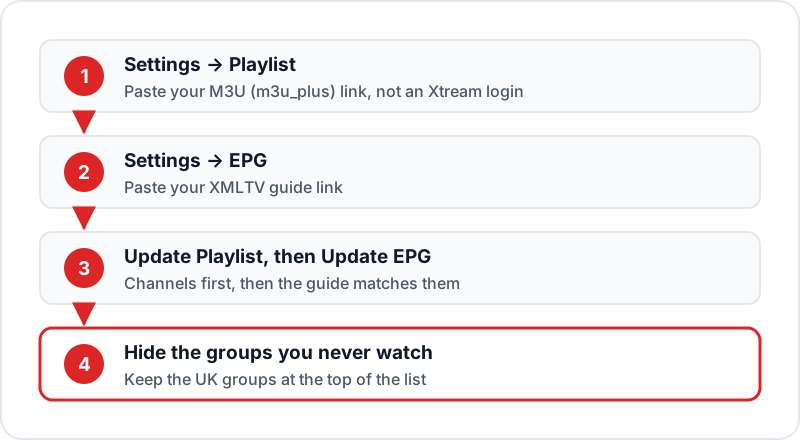
In Perfect Player, press the 3-line menu icon (or swipe from the left edge). Go to Settings → Playlist.
2Add Your M3U URL▼
In the Playlist field, paste your Flickhaven M3U URL — the m3u_plus version of the get.php link sent with your login on WhatsApp. Press Save.
3Add EPG URL (Optional)▼
In Settings → EPG, paste your Flickhaven XMLTV EPG URL. Press Save. Back on the main screen, press Update EPG to load the TV guide.
4Update Playlist and Watch▼
Press the Update Playlist button. Perfect Player loads your channels. Navigate with your Firestick remote — use the D-pad to browse and OK to play.
Android TV Setup (Existing Installs)
5 minCheck it is already installed
Perfect Player is no longer on Google Play, so this only applies to a box or TV that already has it. If it is missing, install TiviMate or IPTV Smarters Pro from Google Play instead.
Open Settings → Playlist
Launch Perfect Player. Press the menu button and go to Settings → Playlist.
Enter M3U URL
Paste your Flickhaven M3U URL in the Playlist field and press Save.
Add EPG (Optional)
Settings → EPG → paste your Flickhaven XMLTV URL → Save → Update EPG.
Update and Browse Channels
Press Update Playlist. Channels load within seconds. Use your remote to browse and play.
Perfect Player vs IPTV Smarters Pro
| Feature | Perfect Player | IPTV Smarters Pro |
|---|---|---|
| Cost | Free | Free |
| Xtream Codes Support | ✗ (M3U only) | ✓ |
| M3U Support | ✓ | ✓ |
| EPG / TV Guide | ✓ | ✓ |
| VOD / Movies Section | ✗ | ✓ |
| Series Section | ✗ | ✓ |
| Weight on older sticks | Very light | Heavier |
| Still updated | ✗ (none since 2021) | ✓ |
| Interface Style | Minimal list-based | Rich tab-based |
| Official download | ✗ (mirrors only) | ✓ (Google Play, official APK) |
| Android Play Store | ✗ (removed) | ✓ |
| Best For | Existing installs on older devices | New setups, all devices |
Settings Worth Checking After Setup
Perfect Player works with its defaults, but three settings decide whether it feels smooth or sluggish on a Firestick. All of them live under the 3-line menu. Change them after your first Update Playlist so you can see the effect on real channels.
Settings → Playback → Decoder
Leave it on the automatic option first. If a channel plays sound with a frozen, green or black picture, switch to the software decoder and test the same channel again. If everything plays but the Firestick runs hot and stutters, go back to hardware decoding.
Settings → Playlist → Groups
A 55,000+ channel list is too long to scroll. Open the groups panel, hide the country groups you never watch and keep the UK groups at the top. The playlist itself is untouched — you are only filtering what the list shows.
Settings → EPG → Time shift and update
Keep the time shift at 0 for the UK. If programme titles are an hour out, the device clock or time zone is wrong, not the EPG. Turn on automatic EPG updates so the guide stays current without pressing Update EPG every day.
Troubleshooting Perfect Player
Most Perfect Player problems come down to one of three things. Each entry gives the symptom, the usual cause, how to confirm it and the fix.
✗Playlist updates but shows 0 channels▼
Likely cause: The URL is an Xtream Codes login rather than an M3U link, or it was typed with a mistake.
Check: Open the M3U URL in a browser on your phone. It should download or display a text file that starts with #EXTM3U.
Fix: Ask Flickhaven for the M3U URL on WhatsApp and paste it from the message rather than retyping it.
✗Sound plays but the picture is frozen, green or black▼
Likely cause: The decoder setting does not suit that stream's video format.
Check: Try the same channel in a different quality version to confirm the stream itself is fine.
Fix: Settings → Playback → Decoder: switch to software decoding. If that cures it but makes the device sluggish, keep hardware decoding for everything else and use the software option only where needed.
✗EPG is empty for every channel▼
Likely cause: The EPG URL has not been entered, or the guide has not finished downloading.
Check: Settings → EPG: confirm the URL is present, press Update EPG and wait a few minutes before judging.
Fix: If it stays empty, use the m3u_plus version of the playlist URL rather than the plain m3u one, then update both playlist and EPG so the channel IDs match.
Stutter on live channels is almost always the connection rather than the app. For guide problems, see our IPTV EPG not working fix; for router, band and peak-hour checks, the IPTV buffering fix for UK broadband.
Perfect Player IPTV Review: Is It Still the Right Choice?
If it is already installed and working, Perfect Player still suits three kinds of viewer: anyone on an older Fire TV Stick or low-RAM Android box that struggles with heavier apps, anyone who only watches live channels and does not need a movies or series section, and anyone who prefers a plain list to tiles and artwork. For a fresh install, its lack of updates and official download outweighs those strengths.
If you want VOD browsing, an Xtream Codes login or a more modern look, our round-up of the top IPTV players for Firestick and Android compares the alternatives side by side.
What to test during the free 24-hour trial
- ✓Load the full playlist and time how long Update Playlist takes on your device.
- ✓Open the UK channels you watch most at the time you normally watch them, including the evening peak.
- ✓Press Update EPG, wait a few minutes, then confirm the guide matches what is on screen.
- ✓Switch between a few HD and 4K channels to see whether the decoder setting needs changing.
If all four pass, the paid plan behaves the same way — the trial uses the same servers and playlist. Plans are prepaid with no contract and no auto-renewal, so you can start on the 1-month plan at £15.00 and move to a longer term once you are happy.
FAQ
QWhere can I download Perfect Player IPTV?▼
Not from an official store any more. Its Google Play listing now returns "not found", it is not in the Amazon Appstore, and the developer (Niklabs) offers no download of its own. The only copies are APKs on third-party mirror sites, last updated in 2021. We do not recommend installing an unmaintained app from a mirror — use TiviMate or IPTV Smarters Pro instead.
QIs Perfect Player IPTV still worth it? (our review)▼
Only if it is already installed and working. It is light, fast and good with M3U and XMLTV guides on older Fire TV Sticks, but it has had no updates since 2021, cannot take an Xtream Codes login and has no films or series sections. For a new setup, a maintained player is the safer choice.
QIs Perfect Player free?▼
Yes — the app itself never charged. The catch in 2026 is not price but availability: there is no official store listing or developer download any more.
QDoes Perfect Player support Xtream Codes?▼
No. Perfect Player supports M3U playlists and XMLTV EPG only. Contact Flickhaven for your M3U URL — it's included with every subscription.
QIs Perfect Player better than IPTV Smarters?▼
They serve different use cases. Perfect Player is lighter and faster — ideal for older devices with limited RAM. IPTV Smarters has a richer interface with VOD/Series sections and Xtream Codes support. For a modern Firestick, IPTV Smarters is the better all-round choice.
QCan I use Perfect Player on an Android phone or tablet?▼
Yes. The Android version runs on phones and tablets as well as TV boxes, with the playlist and EPG settings in the same place. The interface is designed around a remote, so it is less comfortable on a touchscreen than a dedicated mobile player.
QDoes Perfect Player have catch-up or recording?▼
Perfect Player is built around live channels and the EPG. It has no recorder of its own, and whether catch-up appears depends on the playlist and the version you run. If 7-day catch-up matters, test it during the free 24-hour trial and fall back to TiviMate or IPTV Smarters if it does not show up.
QWhat do I do if my playlist URL changes?▼
Go to Settings → Playlist, replace the old URL and press Update Playlist. Your decoder and interface settings are kept; only the channel list is refreshed. Flickhaven credentials do not change when you renew a prepaid plan, so this is only needed if you switch provider or ask for a fresh login.
QCan I add more than one playlist?▼
Yes. Perfect Player stores several playlists and lets you switch between them from Settings → Playlist. Each needs its own EPG URL if you want guide data. Most Flickhaven customers only need one, because the 55,000+ channels already sit in a single list that you filter by group.
Ready to Test Perfect Player with Flickhaven?
Get your M3U URL and free 24-hour trial via WhatsApp. Works in Perfect Player if it is already installed, or in TiviMate and IPTV Smarters Pro.
💬 Get Free Trial + M3U URL