How to Install IPTV Smarters
on an LG Smart TV
IPTV Smarters is not in the LG Content Store, because LG TVs run webOS rather than Android and cannot install APK files. There are three working routes: install the free SS IPTV app from the Content Store and enter the same Xtream Codes login, plug in a Firestick and run IPTV Smarters Pro on it, or sideload a webOS .ipk through LG Developer Mode from a PC. SS IPTV takes about five minutes and suits most LG models from 2016 onward.
LG TVs run webOS — not Android — so IPTV Smarters Pro behaves differently here. This guide covers all 4 install methods, the UK region-lock fix for a Content Store that hides SS IPTV, and the GMT/BST EPG settings so kick-off times land correctly.
💬 Get Free Setup Help on WhatsApp
Why IPTV Smarters Isn't in the LG Content Store
IPTV Smarters Pro is available for Android, iOS, Windows, and Mac — but not on the LG Content Store. The reason comes down to operating system architecture.
LG Smart TVs run webOS, a Linux-based operating system that LG developed independently. It is not Android, and it does not run Android app packages (.apk files). The LG Content Store only hosts apps specifically built and packaged for webOS in the .ipk format.
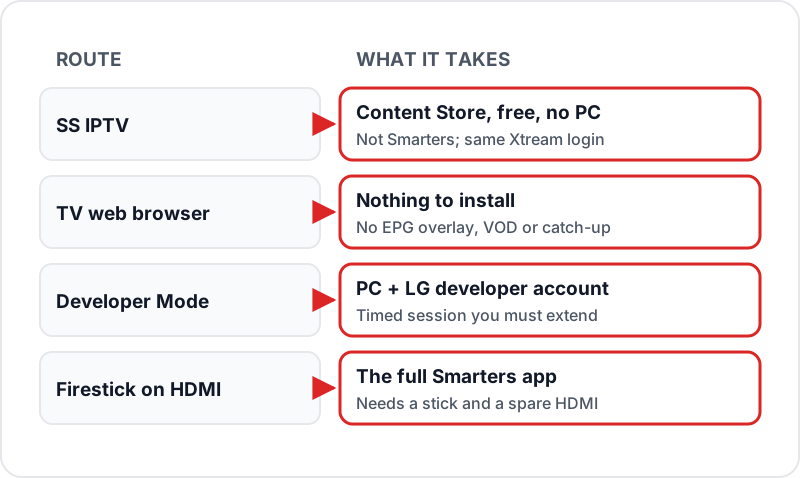
So every IPTV Smarters LG TV setup is one of four routes, and they trade effort against features. The table below is the short version; each method has its own section further down.
UK Account Region & Content Store Lock
Before troubleshooting anything else, check this — it's the fix most US and Canada-focused guides never mention, because it only bites when your LG account or TV was ever registered outside the UK. LG ties the Content Store catalogue to two separate settings: the country registered on your LG account (used for LG ThinQ / webOS sign-in), and the TV's own Location setting under Settings → General → Location & Language.
If you bought the TV abroad, imported it, or set up your LG account before moving to the UK, the Content Store can serve a different regional app catalogue — sometimes missing SS IPTV or Flix IPTV entirely, or showing a paid app like Smart IPTV priced in dollars rather than sterling.
Fix it in three steps
- Settings → General → Location & Language → Country → set to United Kingdom.
- Settings → General → Account → sign out of the LG account, then sign back in.
- Power-cycle the TV — closing the Content Store app alone doesn't refresh its region cache; a full restart does.
This setting is separate from developer mode and doesn't affect Xtream Codes playback once an app is installed — it only controls what's visible to install from the Content Store.
LG TV Compatibility & webOS Version Check
Before you start, confirm your LG TV can run third-party IPTV apps. All methods in this guide require webOS 3.0 or later, which means any LG Smart TV from 2016 onwards — OLED, QNED, NanoCell, UHD and Full HD ranges alike. A 2014–2015 set on webOS 1.x or 2.x, or a non-smart LED TV, should use a Firestick over HDMI (Method 4) instead.
Check your webOS version: Settings → General → About This TV → TV Information.
SS IPTV — The Native LG Alternative
SS IPTV is free, installs straight from the LG Content Store with no developer mode, PC or session expiry, and accepts the same Xtream Codes login as IPTV Smarters. If it is missing from your Content Store, that is almost always the region lock above, not a compatibility problem.
Open the LG Content Store
Press the Home button on your remote. Select Apps → then the search icon (magnifying glass) in the top-right corner.
Search for SS IPTV
Type "SS IPTV" and press Enter. The app should appear in results. Select it and press Install. The app is completely free.
Launch SS IPTV
After install, press Launch or find SS IPTV in your app drawer. On first launch it shows a playlist setup screen.
Choose Xtream Codes Input
Select "Add Playlist" → "Xtream Codes API". Enter your Flickhaven server URL, username, and password. Tap Connect.
Wait for Channels to Load
SS IPTV will load your full channel list (55,000+ channels with Flickhaven). This takes 15–60 seconds depending on your internet speed.
Browse and Watch
Channels are organized by category. Use the filter at the top to find UK channels, sports, international, and more. Press OK to play any channel.
LG TV Browser Method (Quickest)
The quickest way to access IPTV Smarters on LG TV is through the built-in browser. You won't get the full native app experience — no EPG overlay, VOD or catch-up — but you can test your login and browse channels without any setup.
Press the Home button on your LG remote and open the Web Browser app.
Open the web player address you have been given. Some providers host an IPTV Smarters web player; message Flickhaven support on WhatsApp to check whether one is available for your account rather than trusting a search result.
Log in with your Flickhaven Xtream Codes credentials — username, password, and server URL.
Browse the channel list using the LG Magic Remote. Use the pointer to click channels to play them.
Developer Mode (Advanced — True Smarters Install)
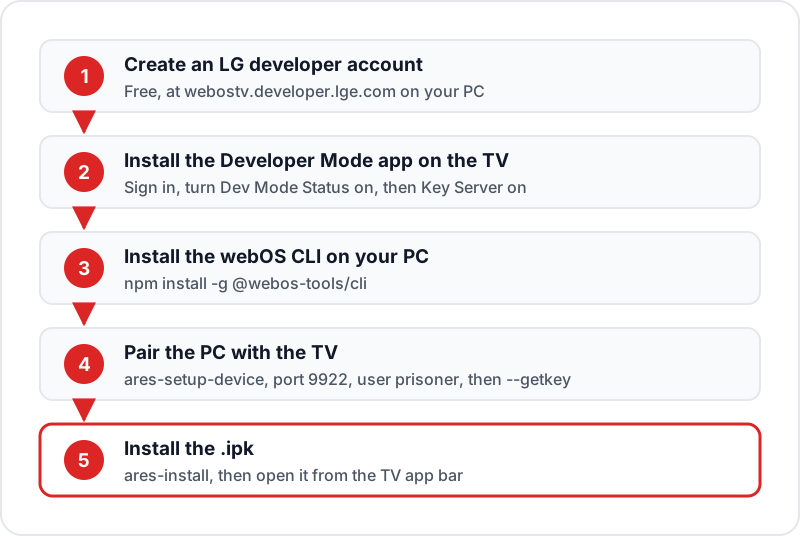
LG's official developer mode allows you to sideload webOS app packages (.ipk files) onto any LG Smart TV from 2016+. This is the only way to install IPTV Smarters directly on the TV itself. You need a PC (Windows or Mac), an LG developer account and some comfort with command-line tools.
Where Developer Mode lives, by webOS generation
webOS 3.0–6.0
2016–2021 models
Install the free "Developer Mode" app from the LG Content Store, sign in with your LG developer account, switch Dev Mode Status on and let the TV restart.
webOS 22 and later
2022–2026 models
The same Developer Mode app from the Content Store. After the restart, open it again and switch Key Server on — the PC needs it to fetch the TV's key. There is no Developer Mode entry in the Settings menu on any version, so don't look for one there.
1Create an LG Developer Account▼
Go to webostv.developer.lge.com on your PC and sign up for a free LG Developer account. Verify your email to activate the account.
2Enable Developer Mode on Your LG TV▼
Search the LG Content Store for "Developer Mode", install the app, open it and sign in with your LG developer account. Switch Dev Mode Status on and the TV restarts. Open the app again and switch Key Server on. The app also shows the remaining session time and an Extend button.
3Find Your TV's IP Address▼
On the LG TV go to Settings → Network → Wi-Fi Connection → Advanced Wi-Fi Settings. Note the IP address shown (e.g., 192.168.1.50). You'll need this to connect your PC to the TV.
4Install Node.js and the webOS CLI on Your PC▼
Download and install the current LTS release of Node.js from nodejs.org. Then open a terminal or command prompt and run: npm install -g @webos-tools/cli — this is LG's webOS TV command-line kit and provides the ares commands used below.
5Add Your LG TV as a Target Device▼
In your terminal run: ares-setup-device. When prompted enter a name for the TV (e.g., "my-lg-tv"), the TV's IP address, port 9922, and username "prisoner". Leave password blank and press Enter. Then run: ares-novacom --device my-lg-tv --getkey and type the passphrase shown in the TV's Developer Mode app.
6Get the webOS .ipk Package▼
Developer Mode installs webOS packages (.ipk files), not Android APKs. Only use a .ipk published by the app's developer and save it to your PC. If you can't find one from the developer, stop here and use Method 1 or Method 4 instead.
7Install the IPK on Your LG TV▼
In your terminal navigate to the folder containing the IPK and run: ares-install --device my-lg-tv followed by the .ipk file name. Wait for the "Success" message — installation takes 10–30 seconds.
8Launch IPTV Smarters from the App Drawer▼
Press the Home button on your LG remote. Scroll to the right in the app bar to find IPTV Smarters. Launch it and enter your Flickhaven Xtream Codes credentials (username, password, server URL).
Firestick via HDMI (Most Reliable for Smarters)
If you want the complete IPTV Smarters Pro experience — EPG guide, VOD/Series tabs, catch-up TV, parental controls — the most reliable method is to run Smarters on a Firestick plugged into your LG TV's HDMI port.
Plug the Amazon Firestick into any HDMI port on your LG TV and connect its power USB cable.
Switch your LG TV to that HDMI input using the Input button on your remote or the source menu.
On the Firestick go to Settings → My Fire TV → Developer Options → Apps from Unknown Sources (Enable).
Search the Amazon Appstore for IPTV Smarters Pro and install it if it is listed. It is often missing from the UK Appstore — if so, install Downloader instead.
In Downloader, enter the APK address from the developer's official website, install IPTV Smarters Pro and launch it.
Choose "Xtream Codes API" login and enter your Flickhaven server URL, username, and password.
Full step-by-step Firestick setup: IPTV Firestick Guide →
Add Flickhaven to Any LG IPTV App
Whether you use SS IPTV, IPTV Smarters (via developer mode), or Flix IPTV — enter the same Flickhaven credentials in all of them.
Server URL
Sent to you on WhatsApp
Username
Your Flickhaven username
Password
Your Flickhaven password
In SS IPTV: Add Playlist → Xtream Codes API. In IPTV Smarters: Login type → Xtream Codes API. WhatsApp support 24/7.
💬 Get My Flickhaven Credentials via WhatsAppEPG & Timezone Setup for UK Viewers (GMT/BST)
UK broadcast schedules are published in local UK time: GMT in winter, BST (GMT+1) from late March to late October. If the guide inside your IPTV app is running on the wrong offset, kick-offs and programme start times appear an hour out.
EPG in SS IPTV
- 1. SS IPTV loads EPG automatically when you add an Xtream Codes playlist — no extra URL needed.
- 2. SS IPTV follows the TV's own system clock, so confirm Settings → General → Time Zone shows London (GMT/BST) — this can silently reset if you've just changed the Country setting to fix the region lock above.
- 3. If EPG is blank: tap the 3-dot menu → Settings → EPG → Refresh.
EPG in IPTV Smarters (LG)
- 1. After login, go to Settings → EPG Source. For Xtream Codes, EPG loads from the server automatically.
- 2. IPTV Smarters has its own internal Time Offset field, separate from the TV's clock, and it does not auto-adjust for daylight saving.
- 3. During BST (late March–late October) set Time Offset to +1. During GMT (late October–late March) set it back to 0.
- 4. Toggle "Force EPG Update" if the guide is still empty after changing the offset.
- 5. For full EPG fix details: IPTV Smarters EPG Guide →
Troubleshooting LG + IPTV Smarters
Common problems and their solutions for all methods covered in this guide.
✗LG Content Store is missing SS IPTV or the Developer Mode app entirely▼
Cause
The LG account or the TV's Location setting is registered to a non-UK region, so the Content Store is serving a different country's catalogue.
Fix
Settings → General → Location & Language → Country → United Kingdom, then sign out of the LG account (Settings → General → Account) and back in. Power-cycle the TV afterwards — the Content Store cache needs a restart to refresh.
✗ares-setup-device can't find the TV even though it shows online▼
Cause
Some UK ISP routers isolate devices between the main network and a guest band, or the firewall preset blocks the local port ares-cli connects over.
Fix
Confirm the PC and TV are on the same SSID (not a guest network) and lower the router's firewall preset while sideloading. On BT and TalkTalk hubs also move the TV to an unfiltered parental-control profile; on a Virgin Media Hub set the firewall to Low temporarily; on a Plusnet Hub split the 2.4GHz and 5GHz bands into separate SSIDs so the PC and TV sit on the same one.
✗Developer mode expired — the sideloaded app won't open, or ares-install is refused▼
Cause
LG developer mode runs on a timed session, with the remaining time shown in the Developer Mode app. When it runs out, developer mode switches off and sideloaded apps stop working.
Fix
Open the Developer Mode app and press Extend before the session runs out. If it has already lapsed, switch Dev Mode Status back on, then reinstall the .ipk with ares-install if the app is no longer in the app bar.
✗Black screen when playing channels in IPTV Smarters▼
Cause
A sideloaded webOS build doesn't always handle every stream format the TV's own apps do.
Fix
Open Settings inside IPTV Smarters and try a different player option if one is offered. Then test the same channel in SS IPTV — if it plays there, the problem is the sideloaded app; if one channel fails everywhere, message support on WhatsApp so the stream can be checked.
✗EPG shows programmes an hour out on LG▼
Cause
IPTV Smarters' internal Time Offset field doesn't auto-adjust for British Summer Time — it's separate from the TV's own clock.
Fix
In IPTV Smarters settings set Time Offset to +1 during BST (late March–late October) and back to 0 in GMT. Full detail in the EPG & timezone section above. Alternatively switch to SS IPTV, which follows the TV's system clock automatically.
Still stuck? General IPTV troubleshooting guide →
Frequently Asked Questions
QDoes IPTV Smarters Pro work on LG Smart TV?▼
Not natively from the LG Content Store. IPTV Smarters Pro requires developer mode sideloading on LG webOS TVs. The easier alternative is SS IPTV, which is free in the LG Content Store and supports the same Xtream Codes format.
QHow do I download IPTV Smarters on an LG TV?▼
There is no LG Content Store download, so there are two real routes. Without a PC, plug a Firestick into the TV's HDMI port and install IPTV Smarters Pro on the stick. With a PC, enable LG Developer Mode, install the webOS CLI and push a developer-published .ipk to the TV with ares-install. If you only want your channels on the TV itself, SS IPTV from the Content Store takes the same login in under five minutes.
QWhich IPTV Smarters LG TV route should I pick?▼
SS IPTV if you want the least effort, a Firestick if you want the full IPTV Smarters Pro app with EPG, VOD and catch-up, and Developer Mode only if you are comfortable with the command line and with extending a timed developer session.
QCan I sideload an APK file on my LG TV?▼
No. LG Smart TVs run webOS, not Android. Android APK files do not work on LG TVs. Developer mode on LG allows .ipk (webOS package) files only, installed via ares-cli tools.
QWhy is the EPG guide in IPTV Smarters an hour off on my LG TV?▼
This is almost always a timezone setting, not a data problem. IPTV Smarters Pro has its own internal Time Offset field, separate from the TV's clock, and it doesn't auto-adjust for British Summer Time. During BST (late March to late October) set Time Offset to +1; switch it back to 0 when the clocks go back to GMT in October.
Related Guides
For every LG route in one place read the Full LG TV IPTV Guide; for guide problems see Fix EPG on IPTV Smarters and EPG Timezone Fixes; for playback see Channels Not Loading. Other TVs and apps: Samsung Smart TV IPTV and Best IPTV Apps UK. New to Flickhaven? Start with the Free IPTV Trial.
Ready to Watch on Your LG TV?
Get your Flickhaven credentials and start watching 55,000+ channels on your LG Smart TV today — via SS IPTV in under 5 minutes.