How to Download and Set Up IPTV Smarters Pro
in 5 Minutes
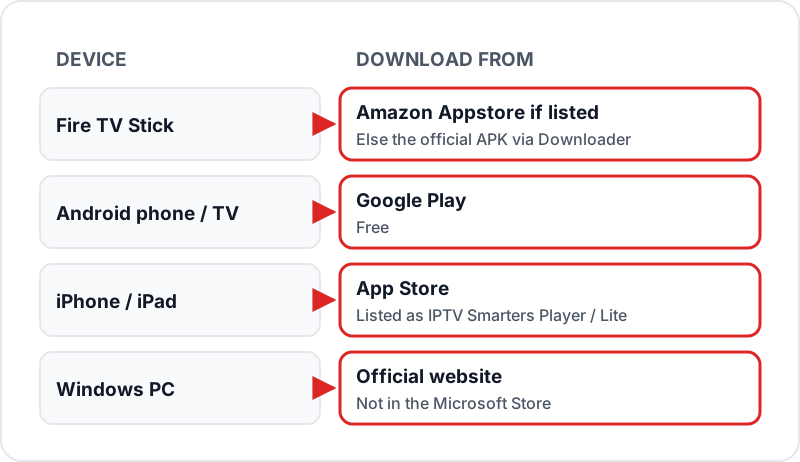
The IPTV Smarters Pro download is free on every device: Google Play on Android phones and TVs, the App Store on iPhone and iPad (listed as IPTV Smarters Player), the official website on Windows, and on Firestick the Amazon Appstore if listed, otherwise the official APK via Downloader. Then tap Add User, choose Login with Xtream Codes API, and paste the server URL, username and password from your WhatsApp message. Channels load within a minute.
Firestick, Android, Android TV, iPhone, and Windows PC — all covered. Xtream Codes and M3U login methods explained. Get streaming in under 5 minutes.
Fire TV Stick
Free — Appstore or APK
Android
Free — Google Play
iPhone / iPad
Free — App Store
Windows PC
Free — official site
Table of Contents
What Is IPTV Smarters Pro?
IPTV Smarters Pro is a free media player app that connects to an IPTV subscription to stream live TV, movies, and series on any device. It does not include content itself — it acts as the player that loads your provider's channel list, VOD library, and EPG guide using your login credentials.
It is one of the most widely used IPTV apps in the UK, available across Firestick, Android, iOS, Android TV, and Windows. Once connected to a Flickhaven subscription, it gives you access to 55,000+ live channels, 180,000+ VOD titles, premium live sports channels, and a full 7-day EPG guide.
Prerequisites Before You Start
Have these three things ready before opening the app — setup takes under 5 minutes once they're in hand.
IPTV Subscription Credentials
Your Flickhaven Server URL, Username, and Password from your WhatsApp activation message. These are required for Xtream Codes login.
Compatible Device
Fire TV Stick, Android phone/tablet, Android TV, iPhone/iPad, or Windows PC. IPTV Smarters is not natively available for LG or Samsung Smart TVs.
10 Mbps+ Internet
Minimum 10 Mbps for HD streams. 25 Mbps for 1080p Full HD. 50 Mbps for 4K UHD. Run a speed test at fast.com if unsure.
Xtream Codes vs M3U — Which Login Method to Use
IPTV Smarters Pro offers two ways to connect to your subscription. Understanding the difference saves you troubleshooting time.
Xtream Codes API
A live API connection using three credentials: Server URL + Username + Password. The app connects directly to your provider's server and automatically loads channels, VOD, series, and EPG. Everything stays up to date without manual refreshing.
- ✓ EPG loads automatically
- ✓ VOD and series categories appear
- ✓ Channel list updates without re-entering credentials
- ✓ Catch-up TV available (where supported)
M3U URL
A playlist file URL that the app downloads and parses. You paste a single URL that points to your M3U playlist file. Works, but requires manual refresh when the provider updates the channel list. EPG needs a separate XMLTV URL.
- • EPG requires separate XMLTV URL setup
- • VOD categories may not appear as clearly
- • Must re-download when channels change
- • No catch-up TV support in most cases
IPTV Smarters Pro Download: Where to Get It on Each Device
The IPTV Smarters download comes from a different place on each device. Use the official store or the developer's own website, never a third-party mirror, and check the publisher name before installing.
Setup on Fire TV Stick (Appstore or Official APK)
From the Firestick home screen press the search icon (magnifying glass) and type "IPTV Smarters Pro".
If it appears in the Amazon Appstore results, press Download (it is free). If it is missing from the UK store, install Downloader, allow it under Settings → My Fire TV → Developer Options → Install Unknown Apps, and enter the address of the official IPTV Smarters Pro APK from the developer's website.
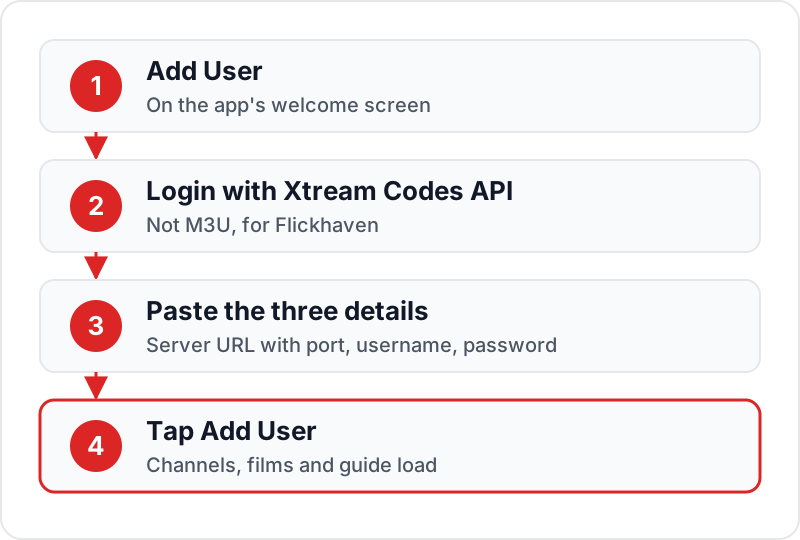
Once installed, press Open. On the welcome screen tap "Add User".
Select "Login with Xtream Codes API" as the login type.
Enter your Flickhaven Server URL (including the http:// prefix and the port, e.g. :8080), your Username, and your Password exactly as provided in your WhatsApp activation message.
Tap "Add User". Your channels, VOD library, and EPG guide load within 30–60 seconds.
Setup on Android Phone / Tablet
Open the Google Play Store on your Android phone or tablet.
Search for "IPTV Smarters Pro" and install the app. It is free.
Launch the app and tap "Add User" on the welcome screen.
Select "Login with Xtream Codes API".
Enter your Server URL, Username, and Password from your Flickhaven WhatsApp activation message.
Tap "Add User" to connect. Your full channel list and VOD appear in 30–60 seconds.
Setup on Android TV / Google TV
Open the Google Play Store on your Android TV or Google TV device (e.g., Chromecast with Google TV, Nvidia Shield, Sony Bravia).
Search for "IPTV Smarters Pro" and install. The app is free.
Launch the app. Navigate using your TV remote — the D-pad controls the interface.
Select "Add User" and choose "Login with Xtream Codes API".
Use the on-screen keyboard or pair a Bluetooth keyboard to enter your Server URL, Username, and Password.
Confirm with "Add User". Channels load within a minute.
Setup on iPhone / iPad
Open the App Store on your iPhone or iPad and search for "IPTV Smarters Player" — on iOS the app is listed as IPTV Smarters Player or Smarters Player Lite by WHMCS Smarters.
Tap Get to install it. It is free to download.
Launch the app after installation. Tap "Add User" on the welcome screen.
Select "Login with Xtream Codes API".
Enter your Flickhaven Server URL, Username, and Password.
Tap "Add User". Your channels and VOD load within 30–60 seconds.
Setup on Windows PC
On your PC visit the official IPTV Smarters website (iptvsmarters.com) and download the Windows installer. Do not use third-party download sites.
Run the installer and follow the on-screen prompts to install IPTV Smarters Pro.
Launch the app after installation.
Click "Add User" on the welcome screen and select "Login with Xtream Codes API".
Enter your Flickhaven Server URL, Username, and Password.
Click "Add User". Your channels, VOD, and EPG load automatically.
Post-Setup Tips
Once you've logged in and channels are loading, these settings improve your experience significantly.
Set EPG Update Schedule
In app Settings → EPG Settings, set auto-update to every 12 hours. This keeps your TV guide data current without manual refreshing.
Create a Favourites List
Long-press any channel and select "Add to Favourites". Build a custom list of your most-watched channels for one-tap access from the home screen.
Try the Other Player Option (Firestick)
If 4K or HD playback stutters, go to Settings → Player Settings and switch to the other player option, then test the same channel again.
Enable Parental Controls
In Settings → Parental Control, set a PIN to lock adult content categories. The PIN is required to access locked channels.
Adjust Stream Quality
Inside a playing channel, tap the settings icon to switch between SD, HD, and 4K quality streams. Lower quality if you experience buffering on slower connections.
5 Common Errors and Fixes
These are the most frequently reported IPTV Smarters Pro problems — with the exact cause and fix for each.
1Wrong server URL format — login fails immediately▼
Cause
The server URL must begin with http:// (or https://) and include the port number. A URL without these elements will always fail.
Fix
Correct format: http://, then the server address, then a colon and the port (for example :8080), exactly as sent. No trailing slash at the end.
2Case-sensitive username or password rejected▼
Cause
IPTV Smarters sends your credentials exactly as typed. IPTV server authentication is case-sensitive.
Fix
Copy your username and password directly from your Flickhaven WhatsApp activation message rather than typing them manually. Even one wrong capital letter causes login failure.
3Selected wrong login type — channels not loading▼
Cause
Choosing "M3U URL" when your provider uses Xtream Codes (or vice versa) means the app tries to parse the wrong format.
Fix
Flickhaven uses Xtream Codes API. Delete the current user profile in the app and re-add it selecting "Login with Xtream Codes API" as the login type.
4Loading spinner stuck — app hangs on "Loading Channels"▼
Cause
Corrupted app cache from a previous failed login attempt. The app stores partial data that prevents a fresh connection.
Fix
On Android/Firestick: go to Settings → Apps → IPTV Smarters Pro → Clear Cache → Clear Data. Relaunch and enter credentials again from scratch.
5Channels not loading after login succeeds▼
Cause
Your subscription may have expired, or the account has reached its maximum simultaneous connection limit.
Fix
Check your subscription status. If you are using the same credentials on more than the permitted number of devices simultaneously, disconnect other devices first.
Frequently Asked Questions
QIs IPTV Smarters Pro free?▼
Yes. IPTV Smarters Pro is free on Firestick, Android (Google Play), Android TV and Windows, and on iPhone and iPad the App Store version (listed as IPTV Smarters Player or Smarters Player Lite) is free to download too. The app does not include channels — you need a separate IPTV subscription like Flickhaven to load content.
QHow do I download IPTV Smarters Pro on Firestick?▼
Search the Fire TV home screen for IPTV Smarters Pro first; if the Amazon Appstore lists it, select Download. If it is missing from the UK store, install the Downloader app, allow it under Developer Options, Install Unknown Apps, and enter the address of the official IPTV Smarters Pro APK from the developer's website. Delete the APK file once it has installed.
QWhat's the difference between M3U and Xtream Codes?▼
M3U is a static playlist file you download and reload manually. Xtream Codes is a live API connection using your provider's server URL, username, and password — channels, VOD, and EPG load automatically and stay up to date without any manual file management. Xtream Codes is the better choice for most users.
QWhy are some channels not loading in IPTV Smarters?▼
The most common causes are: expired subscription, the specific stream server is temporarily down, or your internet speed dropped below the minimum required. Try the SD version of the same channel. If most channels fail simultaneously, check your subscription status with Flickhaven.
QCan I use IPTV Smarters on multiple devices?▼
The number of simultaneous connections is set by your IPTV subscription, not the app. Install IPTV Smarters on as many devices as you like — your Flickhaven plan determines how many can stream at the same time.
QDoes IPTV Smarters have a TV guide (EPG)?▼
Yes. IPTV Smarters Pro includes a full 7-day EPG when connected via Xtream Codes. The guide loads automatically from your provider's server, and you can set an auto-update schedule in the app settings.
Related Guides
Get Your Login Credentials
Get your Flickhaven Server URL, Username, and Password via WhatsApp — usually within minutes. Start streaming 55,000+ channels on IPTV Smarters Pro today.