Flickhaven IPTV UK
How to Get IPTV on Sky Glass
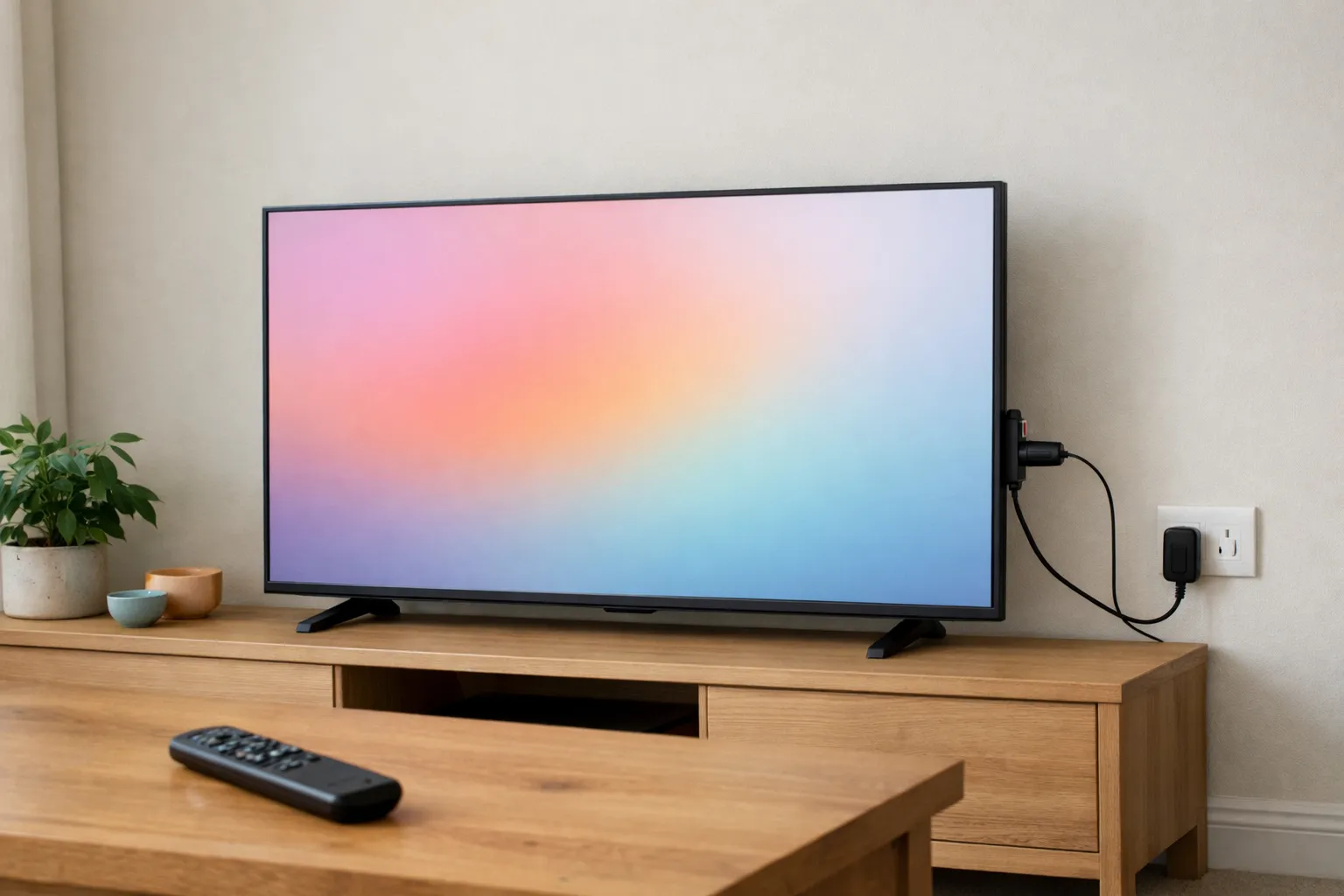
You cannot install an IPTV app on Sky Glass itself. Its software only runs the apps its maker puts in the line-up, and there is no setting to add an APK or another player. What works is a streaming device on one of the three HDMI 2.1 inputs: a Fire TV Stick that runs Fire OS or an Android TV box, with an IPTV player such as TiviMate or IPTV Smarters Pro. Switch Sky Glass to that HDMI input and you watch IPTV on the Glass screen.
Can Sky Glass run IPTV apps?
No. Sky Glass runs its maker's own TV software, not Android TV or Google TV, so the IPTV players you read about (TiviMate, IPTV Smarters Pro and the rest) have no version for it. The apps on the TV are the ones its maker has chosen to carry: broadcaster catch-up players and the big streaming services. There is no app store where you pick your own, and no setting to install an APK file. Answers on the Glass help forum say the same: only the maker can add or remove an app, and a streaming stick is the way to get one it does not carry.
That settles the searches for a “Sky Glass IPTV APK” or a “Sky Glass downloader code”. An APK is an Android install file and a downloader code is typed into the Downloader app on a Fire TV Stick or Android box, so neither has anywhere to go on the TV. Any site offering a download “for Sky Glass” is offering a file the TV cannot open. Our explainer on what downloader codes are and where they work covers the stick side.
What Sky Glass does have is good inputs. The second-generation model has three HDMI 2.1 ports, one of them eARC, according to Expert Reviews, and the Glass Air reviewed by What Hi-Fi has the same trio. Anything you plug into one of them, including a streaming stick running an IPTV player, shows on the Glass screen like any other source.
Option 1: a Fire TV Stick on HDMI
A Fire TV Stick is the cheapest way to get IPTV on Sky Glass, as long as it runs Fire OS. Fire OS is built on Android, so you can install an IPTV player with the Downloader app after turning on apps from unknown sources in Developer Options. Our step-by-step Firestick IPTV setup guide walks through every screen.
Check the model before you buy. The Fire TV Stick 4K Select runs Amazon's newer Vega OS, which has “no option to allow apps from unknown sources”, as AFTVnews found when it tested the stick, and Amazon has said future Fire TV Sticks will run Vega too, as Digital Trends reported. On a Vega stick you cannot sideload TiviMate or IPTV Smarters Pro, so plugging it into Sky Glass gets you no further than the TV's own apps. Look for “Fire OS” in the product details, or pick an Android TV box instead.
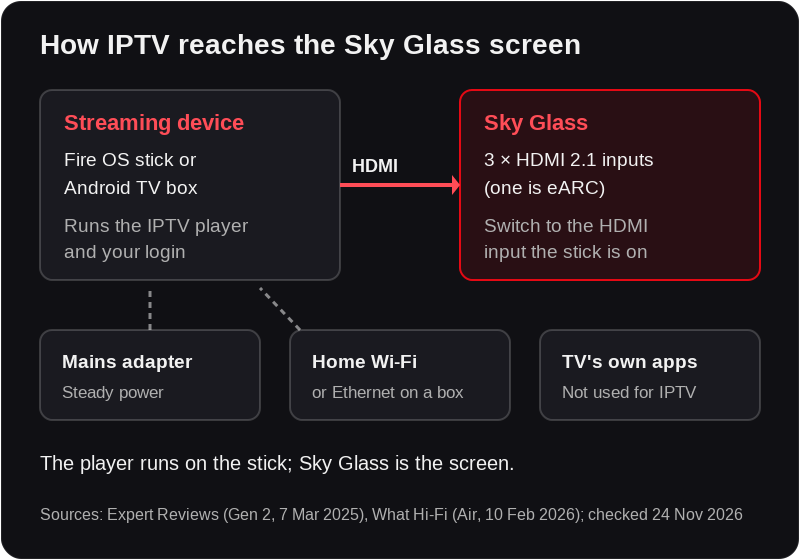
Two practical points. The ports sit in a cubby at the back, which on the larger sets you reach around the side or over the top, so a stick may not fit straight in; many Fire TV Sticks come with a short HDMI extender for exactly this. And power the stick from its own mains adapter rather than a USB port on the TV: if the stick shows a low-power warning, the adapter is Amazon's own fix.
Option 2: an Android TV box
An Android TV or Google TV box is the better choice if you want a wired connection or the Play Store. Many boxes have an Ethernet port, which keeps live channels steadier than Wi-Fi when the router is in another room, and some IPTV players install straight from the Play Store where they are listed. Where a player is not listed, you install its APK, as on a Fire OS stick. The box sits beside the TV on an HDMI cable, so the cubby is not a problem.
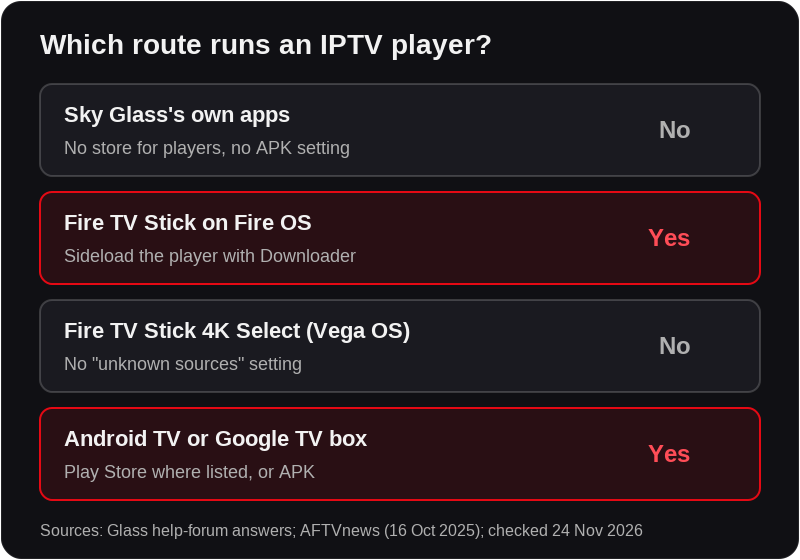
| Route | Runs an IPTV player? | How | Worth knowing |
|---|---|---|---|
| Sky Glass's own apps | No | No store for players and no setting to install an APK | Nothing to buy |
| Fire TV Stick on Fire OS | Yes | Sideload the player with the Downloader app | Lowest cost; Wi-Fi only unless you add an adapter |
| Fire TV Stick 4K Select (Vega OS) | No | No setting to allow apps from unknown sources | Check the listing before you buy |
| Android TV or Google TV box | Yes | Play Store where the player is listed, or an APK | Often has an Ethernet port |
Our comparison of IPTV boxes covers the main models side by side, and the Android TV box setup guide shows the install on that system. If you already own a box or stick from another TV, it works the same on Sky Glass.
Which app to use
Use a player that takes an Xtream Codes login, because that is what most providers send. TiviMate and IPTV Smarters Pro are the two most people start with: both accept a server URL, username and password, and both load the channel list, TV guide and on-demand library from that one login. TiviMate is built around a TV-style guide; IPTV Smarters Pro is simpler to set up. Our comparison of IPTV player apps goes through the others.
The app does not change because the screen is Sky Glass. Whatever runs on the stick runs the same on any TV, so pick it for the stick, not for the screen. On Flickhaven, the login (server URL, username and password, with an M3U link on request) arrives on WhatsApp within minutes of payment, and it works in either player. See Flickhaven's plans and prices for the options.
Setup steps
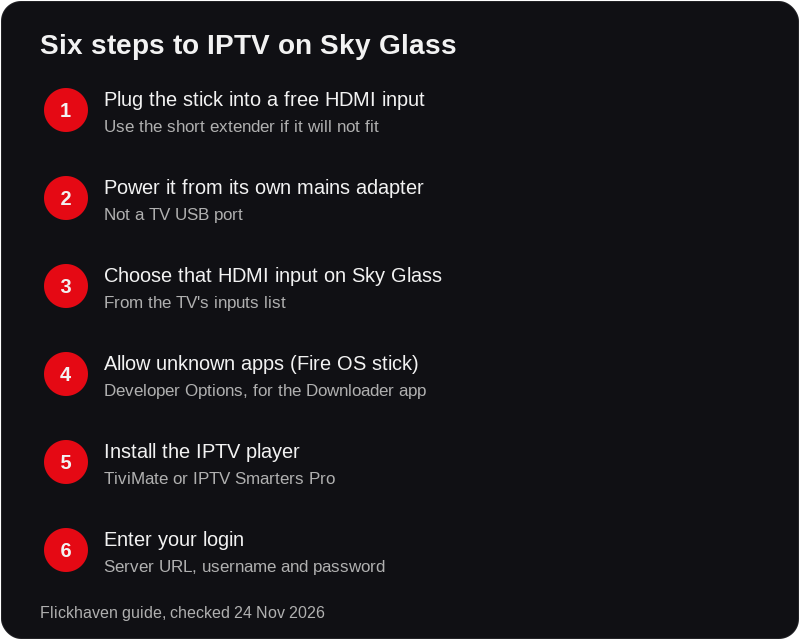
Setting up takes about ten minutes once the stick is in your hands.
- Plug the stick or box into a free HDMI input on Sky Glass. Use the short extender if the stick will not fit.
- Power it from its own mains adapter, not a USB port on the TV.
- On Sky Glass, open the list of inputs and choose the HDMI input the stick is on. The stick's own home screen appears.
- Connect the stick to your Wi-Fi, or plug a box into the router with Ethernet.
- On a Fire OS stick, turn on apps from unknown sources for the Downloader app in Developer Options. On an Android TV box, check the Play Store first.
- Install TiviMate or IPTV Smarters Pro, choose the Xtream Codes login and enter the server URL, username and password from your provider.
If the input shows no picture, power Sky Glass off at the wall for a minute and switch it back on; owners on the help forum report that this brings HDMI sources back. Then try the stick in a different HDMI input.
You can try all of this before paying. Flickhaven's free 24-hour trial on WhatsApp needs no card and covers one device at a time, so set it up on the stick and watch for a day on the Glass screen. Support is on WhatsApp 24/7 if a step does not match what you see. For the full service, start from the Flickhaven IPTV UK home page.
Picture settings
Sky Glass applies its own picture settings to whatever is on the HDMI input, so a few changes are worth checking. The TV's help pages split them into viewing modes and picture settings. Its automatic backlight dims the screen in a dark room; if live sport looks flat in the evening, T3 gives the path as the “...” button, then Settings, Picture and Sound, Picture, Auto Backlight Adjustment.
On the stick, set the output resolution to the highest the TV accepts, so Sky Glass is not scaling up a lower signal; a 4K-capable stick or box is worth it here. Flickhaven includes 4K Ultra HD streams on channels that carry them, but the stream, not the setting, decides the quality you get.
Speed matters more than any setting. A 4K stream needs a steady connection, and Wi-Fi to a stick behind a TV is the usual weak point. Our guide to how much internet speed IPTV needs gives the figures, and the IPTV device hub lists every other screen we cover.
Sources
- Expert Reviews — Sky Glass Gen 2 review (three HDMI 2.1 ports, one eARC; rear port cubbies), 7 Mar 2025
- What Hi-Fi — Sky Glass Air review (three HDMI 2.1 ports, eARC), 10 Feb 2026
- Glass help forum — adding apps on a Glass TV (apps are added by the maker only)
- AFTVnews — Fire TV Stick 4K Select on Vega OS: no unknown-sources setting, 16 Oct 2025
- Digital Trends — future Fire TV Sticks to run Vega OS, 1 Jul 2026
- T3 — Sky Glass settings (Auto Backlight Adjustment path), 21 Jan 2026
Checked on .
Questions people ask
Is there a Sky Glass IPTV APK?+
No. Sky Glass does not run Android apps, so an APK cannot be installed on the TV. Install the APK on a Fire OS stick or Android TV box plugged into the TV instead.
Is there a downloader code for Sky Glass?+
No. Downloader codes are typed into the Downloader app on a Fire TV Stick or Android TV device. They work on the stick plugged into Sky Glass, never on the TV itself.
Can you plug a Firestick into Sky Glass?+
Yes. Plug it into any of the three HDMI inputs, power it from its mains adapter and choose that input on the TV. Use the short extender if the stick does not fit.
Does IPTV Smarters work on Sky Glass?+
Not on the TV itself. It runs on a Fire OS stick or Android TV box on one of the HDMI inputs, and the picture shows on the Glass screen.
Why is IPTV not working on Sky Glass?+
Check the TV is on the right HDMI input, the stick has mains power and the login is typed exactly. If the input shows nothing, power the TV off at the wall for a minute and try again.
Test your login on the stick before you pay
Plug the stick into Sky Glass, then ask for the free 24-hour trial on WhatsApp: no card needed, one device at a time. Support runs 24/7.
No credit card · No contract · Instant activation
See also: IPTV on Firestick: Setup Guide · IPTV Boxes Compared · IPTV on an Android TV Box.