Flickhaven IPTV UK
IPTV Player for Mac — macOS and MacBook Setup Guide
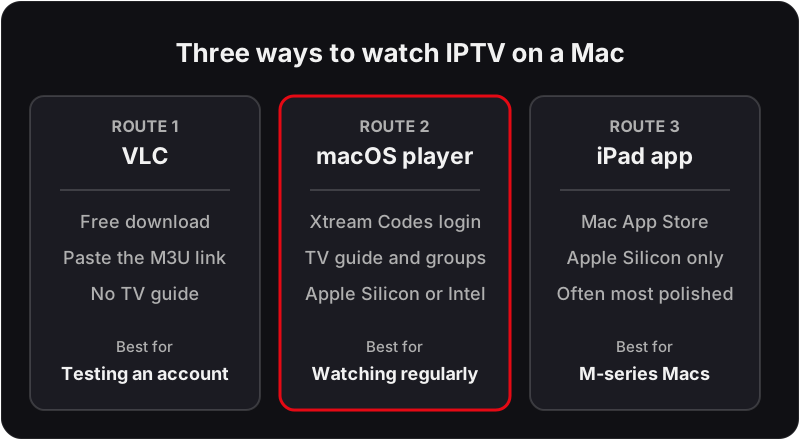
An IPTV player for Mac comes three ways. VLC, a free download, plays an M3U playlist with no account setup, which makes it the fastest way to test credentials, though it has no TV guide. A dedicated macOS player such as IPTV Smarters Pro adds a guide, channel groups and an Xtream Codes login. On Apple Silicon Macs, iPad IPTV apps can run natively from the Mac App Store where the developer allows it.

There are three ways to watch IPTV on a Mac, and the right one depends on what the Mac is for. If you just want to check that credentials work, VLC does it in under a minute once installed. If the Mac is going to be a screen you actually watch, a dedicated player with a proper guide is worth the setup. And on an Apple Silicon Mac there is a third route most guides never mention — running the iPad player natively, which is frequently better than any macOS-only option. All three are below. Related: IPTV on Windows and IPTV on iPhone & iPad.
Which Route Should You Take?
- ▸ Just testing an account? VLC. A free download, no login screen, works in under a minute.
- ▸ Watching regularly on the Mac? A dedicated player, for the EPG and channel groups.
- ▸ On an M1, M2, M3 or later Mac? Check the Mac App Store for the iPad version of your preferred iOS player first.
- ▸ Want it on the big screen? A cable beats AirPlay for sport. AirPlay is fine for films.
- ▸ On an Intel Mac? Native macOS players and VLC only — the iPad route needs Apple Silicon.
The Three Routes to an IPTV Player for Mac
Route 1: VLC with your M3U playlist
Best for: Testing, and anyone who wants no setup at all
VLC is a free download from videolan.org, and it plays an IPTV playlist without an account or a configuration screen. Paste the playlist URL into Open Network and the full channel list appears in the playlist window. There is no EPG and no channel grouping, which is why it is a poor daily driver — but it is the fastest possible way to prove your credentials work before you spend time on anything else.
- 1Open VLC and choose File → Open Network from the menu bar.
- 2Paste your M3U playlist URL into the address field.
- 3Press Open, then open the playlist window (Window → Playlist) to see the channel list.
- 4Double-click a channel to start it.
Route 2: A dedicated IPTV player for macOS, such as IPTV Smarters Pro
Best for: Using the Mac as a regular viewing device
Native macOS players give you what VLC does not: a programme guide, channel categories, favourites, search and a login screen that takes Xtream Codes credentials directly rather than needing an M3U link assembled by hand. This is the route to take if the Mac is going to be a screen you watch on rather than a machine you test with.
- 1Install your chosen macOS IPTV player from its developer or the Mac App Store.
- 2Open it and choose the Xtream Codes API login option.
- 3Enter the server URL, username and password exactly as issued.
- 4Let the channel list and EPG download, then set the guide time zone to United Kingdom.
Route 3: An iPad app on an Apple Silicon Mac
Best for: M-series Macs, where it is often the best option available
This is the route most guides miss. On an M-series Mac, iPad apps can run natively when the developer has made them available on the Mac App Store, and iPad IPTV players are generally more polished than their macOS equivalents. It is worth checking the Mac App Store listing for your preferred iOS player before settling for a desktop-only alternative.
- 1Open the Mac App Store on an Apple Silicon Mac and search for your preferred iOS IPTV player.
- 2Check the iPhone & iPad Apps tab in the results — that is where these appear.
- 3Install it and sign in with your Xtream Codes credentials as you would on an iPad.
- 4If the app is not listed, the developer has not enabled it for Mac; use a macOS player instead.
Credentials that work on every route
One login, Mac and TV both
Flickhaven issues Xtream Codes credentials that work in VLC, in a macOS player and in an iPad app on Apple Silicon — the same server URL, username and password across all of them, and across your TV device too (one stream at a time on a 1-device plan). The free 24-hour trial issues them with no card, which is enough to try all three routes and settle on one.
Getting It Onto the Television
HDMI or USB-C cable
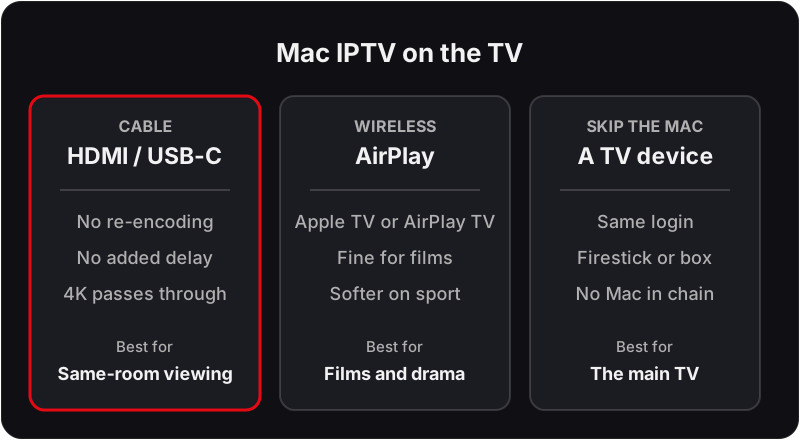
The best option when the Mac and TV are in the same room. No re-encoding, no added latency, and 4K passes through cleanly. A USB-C to HDMI adapter costs very little and there is nothing to configure.
AirPlay to an Apple TV or AirPlay TV
Convenient and wireless. Fine for films and drama. Noticeably softer on fast sport, because mirroring adds an encode-and-decode round trip on top of the stream you are already receiving.
Skip the Mac entirely for the main TV
If the television is where you mostly watch, put the subscription on a device made for it. The same credentials work on a Firestick, an Android box or the TV's own app — the Mac does not need to be in the chain at all.
Mac-Specific Playback Problems
Stream stutters while the connection tests fine
The Mac is competing with itself. Time Machine, an iCloud sync or a browser with many tabs will all take bandwidth and CPU from the stream. Quit them and test again before blaming the line.
Fans spin up and playback degrades
Software decoding rather than hardware. Enable hardware acceleration in the player's video settings; in VLC the setting is under Preferences → Input / Codecs.
Playlist opens in VLC but channels will not play
The playlist loaded, so the credentials are valid — individual streams failing points upstream. Try several channels from different groups before concluding anything is wrong at your end.
No sound through an external display
macOS routes audio separately from video. Open System Settings → Sound → Output and select the TV or receiver explicitly after connecting the cable.
Player will not open — unidentified developer
Gatekeeper. Try to open the app once, then go to System Settings → Privacy & Security and choose Open Anyway; on macOS 15 and later the old Control-click shortcut no longer bypasses the warning. Only do this for software you obtained from the developer directly.
Wi-Fi drops during long viewing
macOS power settings can idle the network adapter. Connect by Ethernet through a USB-C adapter for anything you plan to watch for hours.
For faults that are not specific to macOS, the troubleshooting hub routes by symptom across every device.
IPTV on Mac — Frequently Asked Questions
How do I watch IPTV on a Mac?+
There are three routes. Install a dedicated macOS IPTV player and sign in with your Xtream Codes credentials; open your M3U playlist URL directly in VLC, which needs no account setup at all; or, on an Apple Silicon Mac, install an iPad IPTV app from the Mac App Store where the developer has made it available. VLC is the fastest way to confirm the credentials work before installing anything else.
Is IPTV Smarters available for Mac?+
IPTV Smarters Pro publishes a macOS build on its own website, and on an Apple Silicon Mac its iPad app may also appear in the Mac App Store. Either takes your Xtream Codes server URL, username and password, so the login is the same one you use on a TV.
Is there an IPTV player for older Mac OS X versions?+
VLC is the safest choice on an older Mac OS X release, because VLC 3 still supports machines that newer IPTV apps have dropped. Paste the M3U link into File then Open Network. Expect no TV guide, and check the player's own system requirements before relying on a dedicated app.
Can I use VLC to watch IPTV on macOS?+
Yes, and it is the simplest option. Install VLC (a free download from videolan.org), choose File then Open Network, and paste your M3U playlist URL. The full channel list loads into VLC's playlist window and plays immediately. What you do not get is an EPG, channel groups or a proper guide, so VLC works best as a test tool or a second screen rather than as your main way of watching.
Do IPTV apps run on Apple Silicon Macs?+
Many do, in two ways. Some developers publish their iPad app for M-series Macs through the Mac App Store, where it installs and runs natively. Others ship a proper macOS build. Intel Macs are limited to native macOS players and VLC, because the iPad app route depends on Apple Silicon. Check the Mac App Store listing before assuming an iOS player is available.
How do I convert Xtream Codes credentials into an M3U link for VLC?+
Xtream Codes servers expose the playlist at a predictable address built from the three details you already have — your server URL, then a get.php path carrying your username and password and the output type. If you would rather not assemble it by hand, ask your provider for the M3U link directly; most issue both on request and it takes a moment.
Is watching IPTV on a Mac worse than on a TV box?+
For picture quality, no — a Mac decodes the same streams. For everyday use, yes, because the interface is built for a mouse rather than a remote, and no macOS IPTV player matches TiviMate's guide handling. The Mac makes most sense as a second screen, a travel setup, or for testing an account before committing it to a TV.
Can I send IPTV from my Mac to a TV?+
Yes. AirPlay from the Mac to an Apple TV mirrors or extends the display, which works acceptably for a film and less well for fast sport, where the extra encoding step adds latency and softens motion. A cable from the Mac's HDMI or USB-C port to the TV is better if the two are in the same room.
Does IPTV on a Mac need a VPN?+
No more than on any other device. Add one only if you have established that your home connection is interfering with the stream, which you test by comparing the same account over your broadband and over a phone's mobile hotspot. A VPN on a Mac is easy to add and easy to forget about when it later becomes the thing causing problems.
Why does my Mac IPTV stream stutter when the connection is fine?+
Usually because the Mac is doing something else. A backup, a large sync, or a browser with thirty tabs open all compete for the same bandwidth and CPU that the stream needs. Quit the background work and test again. If it still stutters, connect the Mac by Ethernet through a USB-C adapter to take Wi-Fi out of the picture.
Related Guides
For the wider context, start with our all supported devices, set-up steps for every other device and start a free trial.