Marinios IPTV on Android — Phone, Tablet & TV Box Setup (UK 2026)
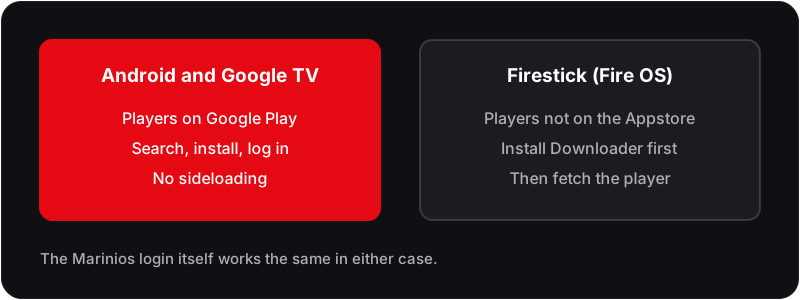
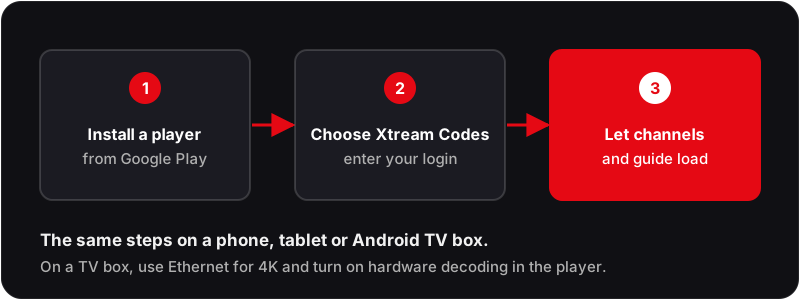
On Android, Marinios IPTV installs without sideloading because the player apps are on Google Play. TiviMate is the strongest option on an Android TV box for its guide and recording; IPTV Smarters Pro is simpler and works on phones and tablets too. Install either, choose the Xtream Codes login, and enter the server URL, username and password. The channel list and EPG populate on first launch, usually within a minute or two.
Android is the most flexible IPTV platform. No sideloading required — all the best IPTV apps are on Google Play. Here is how to set up Marinios IPTV on any Android device.
Who wrote this
Flickhaven operates a competing IPTV service. The Android steps below work the same for any provider's login, Marinios included; where we mention Flickhaven, that is our stated position.
Looking for the full review? This page covers Android setup only. For pricing, full channel list, legality, and comparisons with alternatives, read our complete Marinios IPTV UK review.
Why Android Is the Best Platform for IPTV
Android is the most versatile IPTV platform available in 2026. Unlike Firestick — which requires sideloading — Android devices allow you to install the best IPTV apps directly from Google Play in seconds. From a budget £30 Android phone to a premium Nvidia Shield TV Pro, every Android device runs the full ecosystem of IPTV players with Xtream Codes and M3U support.
This guide covers three categories of Android device: smartphones and tablets, Android TV boxes, and Google TV devices (such as the Google TV Streamer and Chromecast with Google TV). The setup process is similar across all three, with minor differences in navigation due to the different interfaces.
Devices Covered in This Guide
Android Phone / Tablet
Android 8+ — install from Google Play, watch on screen or cast to TV.
Android TV Box
Nvidia Shield, Formuler Z11, Mi Box, generic boxes — best experience for living room IPTV.
Google TV Devices
Google TV Streamer, Chromecast with Google TV — full Google Play access.
Best Android IPTV Apps for Marinios — Compared
All five apps listed below support Marinios IPTV Xtream Codes credentials and are available on Google Play. The right choice depends on your device type and experience level.
| App | Google Play | Xtream | M3U | EPG | Cost |
|---|---|---|---|---|---|
| TiviMate | ✓ | ✓ | ✓ | ✓ | Free / Premium licence |
| IPTV Smarters Pro | ✓ | ✓ | ✓ | ✓ | Free |
| Televizo | ✓ | ✓ | ✓ | ✓ | Free with ads / one-time Premium |
| GSE Smart IPTV | ✓ | ✓ | ✓ | ✓ | Free |
| OTT Navigator | ✓ | ✓ | ✓ | ✓ | Free / Premium |
TiviMate is the top recommendation for Android TV boxes and Google TV. IPTV Smarters Pro is the best free option for Android phones and tablets.
Setup on Android Phone or Tablet
Using IPTV Smarters ProIPTV Smarters Pro is the most beginner-friendly app for Android phones and tablets. It is free, available on Google Play, and presents Live TV, Movies, and Series in a familiar tab-based interface that works well on touchscreens.
- 1Open the Google Play Store on your Android phone or tablet.
- 2Search for "IPTV Smarters Pro" and install the app — it is free.
- 3Open IPTV Smarters Pro.
- 4Tap Add User on the welcome screen.
- 5Select Login with Xtream Codes API.
- 6Enter a Name for the profile (e.g. Marinios).
- 7Enter your Username exactly as provided in your Marinios subscription details.
- 8Enter your Password exactly as provided.
- 9Enter your Server URL — include the full address with https:// and any port number.
- 10Tap Add User — IPTV Smarters Pro connects to the Marinios server and loads all content automatically.
- 11Use the bottom navigation tabs: Live TV for channels, Movies for films, Series for TV shows.
Setup on Android TV Box or Google TV
Using TiviMateTiviMate is purpose-built for Android TV — its remote-friendly navigation, large channel guide, and fast channel switching make it the best IPTV app for living-room streaming on Android TV boxes and Google TV devices.
- 1From the Android TV home screen, open the Google Play Store.
- 2Search for TiviMate and install the app.
- 3Open TiviMate from your home screen or apps list.
- 4On the welcome screen, tap Add Playlist.
- 5Select Xtream Codes API from the playlist type options.
- 6Enter a Playlist Name (e.g. Marinios IPTV).
- 7Enter your Marinios Server URL in the URL field.
- 8Enter your Username and Password.
- 9Tap Add — TiviMate loads all channels, EPG data, movies, and series from your Marinios subscription.
- 10Navigate with your TV remote: left panel shows channel categories, main area shows the current EPG grid.
TiviMate Premium tip: The free version works with Marinios logins. TiviMate Premium, a low yearly or one-off licence bought through the TiviMate Companion app, adds multiple playlists, recording and the multi-channel view; check the current UK price there before you buy.
Best Android TV Boxes for Marinios IPTV (UK 2026)
Not all Android TV boxes perform equally for IPTV. These are well-known options for UK buyers, compared on processor, memory, codec support and networking. Prices change often, so check current prices before buying.
Nvidia Shield TV Pro
- ✓ Tegra X1+ chip — smoothest 4K IPTV
- ✓ Gigabit Ethernet built-in
- ✓ AI upscaling for HD channels
- ✓ Plex server capability
The definitive Android TV IPTV device. Overkill for HD but exceptional for 4K HDR.
Formuler Z11 Pro Max
- ✓ Built specifically for IPTV
- ✓ 4GB RAM + 32GB storage
- ✓ MyTVOnline 2 portal pre-installed
- ✓ Full 4K HDR support
The most IPTV-optimised Android box available — purpose-built for heavy streaming use.
Google TV Streamer
- ✓ Google ecosystem integration
- ✓ Full Google Play access
- ✓ AV1 hardware decode
- ✓ 4K HDR Dolby Vision
Excellent mid-range option. Google Play access means all IPTV apps install easily.
Amazon Fire TV Stick 4K Max
- ✓ 4K UHD + HDR10+
- ✓ Fast processor for the price
- ✓ Familiar remote UI
- ✓ Widely available in the UK
Runs Fire OS rather than Google Play, so IPTV players are installed through Downloader.
Performance Tips for Android IPTV
Use Wired Ethernet on Android TV Boxes
For 4K IPTV stability, plug your Android TV box into your router via an Ethernet cable. This eliminates Wi-Fi packet loss, which is the most common cause of mid-stream buffering during live Premier League or Champions League matches.
Enable Hardware Decoder in TiviMate
In TiviMate, go to Settings → Player and enable Hardware Decoder. This offloads video processing to the Android box's dedicated video chip rather than the CPU, resulting in smoother 4K and HDR playback with less heat and battery drain.
Set ExoPlayer for Best Codec Compatibility
In IPTV Smarters Pro or TiviMate, change the player to ExoPlayer. ExoPlayer supports the widest range of video codecs including H.264, H.265/HEVC, AV1, and VP9 — ensuring compatibility with all Marinios stream formats.
Lower Quality for Mobile Data
If you are watching Marinios IPTV on an Android phone using mobile data (4G/5G), set the stream quality to HD (1080p) rather than 4K. This reduces data consumption significantly — a 4K stream uses approximately 15 GB per hour versus 3 GB for HD.
Flickhaven on Android — Same Setup, Better Performance
Flickhaven, which we run, works on every Android device in this guide using the same IPTV apps: TiviMate, IPTV Smarters Pro, GSE Smart IPTV or any other app that supports Xtream Codes. If Marinios streams are reliable for you, great. If you see buffering only at peak times, use Flickhaven's free 24-hour trial to compare during a live match; its Anti-Freeze reroutes a busy stream to another server.
Related Guides
Frequently Asked Questions
Which Android app is best for Marinios IPTV?▼
Do I need to sideload apps for Marinios IPTV on Android?▼
Can I use Marinios IPTV on a Nvidia Shield TV?▼
Does Marinios IPTV work on Google TV (Chromecast with Google TV)?▼
Why is Marinios IPTV buffering on my Android box?▼
Try Flickhaven on Android — Free 24-Hour Trial
55,000+ channels, live sport with no per-event fees and 4K UHD. Works on Android devices via TiviMate or IPTV Smarters Pro. No card required; start via WhatsApp.