Marinios IPTV Firestick Setup — How to Install & Watch in 2026
Installing Marinios IPTV on a Firestick follows the standard Xtream Codes route. Enable Apps from Unknown Sources, install Downloader, then sideload TiviMate or IPTV Smarters Pro. Open the player, choose the Xtream Codes login and enter the server URL, username and password supplied with the subscription. The channel list and guide load automatically. If authorisation fails, the credentials are usually wrong rather than the app — this guide covers the specific errors and what each means.
A complete step-by-step guide to getting Marinios IPTV running on any Amazon Fire TV Stick model — 4K Max, 4K, standard, or Lite.
Who wrote this
Flickhaven operates a competing IPTV service. The Firestick steps below work the same for any provider's login, Marinios included; where we mention Flickhaven, that is our stated position.
Looking for the full review? This is a Firestick setup guide for Marinios IPTV users. For complete pricing, channel list, legality notes, and comparisons, read our full Marinios IPTV guide.
Marinios IPTV on Firestick — What You Need to Know
The Amazon Fire TV Stick is the most popular IPTV device in the UK. Compact, affordable, and easy to use, it plugs directly into any TV's HDMI port and turns it into a full smart streaming device. If you have a Marinios IPTV subscription, here is exactly how to get it running on any Firestick model — from the entry-level Fire Stick Lite through to the flagship Fire Stick 4K Max.
Unlike streaming services such as Netflix or Disney+, IPTV apps are not available natively in the Amazon App Store — you need to sideload them. This sounds more technical than it is. The process involves enabling one developer setting, installing a download helper app, and then installing your IPTV player. Total setup time: under 10 minutes.
Before You Start: What You Need
- ✓Any Amazon Fire TV Stick — Fire Stick 4K Max recommended for 4K streams
- ✓Your Marinios IPTV credentials: Server URL, Username, and Password (from your subscription email or reseller)
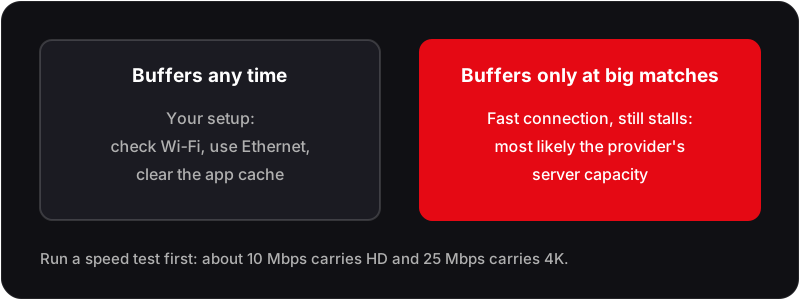
- ✓A stable broadband connection: about 10 Mbps for HD, 25 Mbps for 4K UHD
- ✓A few minutes to complete the setup
| Firestick Model | Resolution | 4K IPTV | Verdict |
|---|---|---|---|
| Fire Stick 4K Max (2nd gen) | 4K Ultra HD | ✓ | Best — fastest, HDR10+ |
| Fire Stick 4K (2nd gen) | 4K Ultra HD | ✓ | Excellent for 4K IPTV |
| Fire TV Cube (3rd gen) | 4K Ultra HD | ✓ | Most powerful overall |
| Fire Stick (4th gen) | 1080p Full HD | ✗ | Great for HD IPTV |
| Fire Stick Lite | 1080p Full HD | ✗ | Works well — HD only |
| Fire Stick (older generations) | 1080p Full HD | ✗ | Supported — HD only |
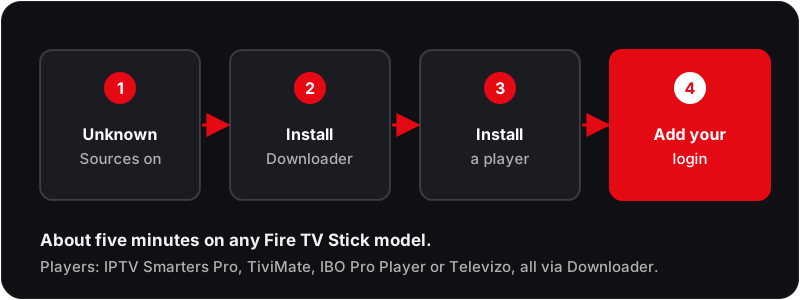
Step 1: Enable Sideloading on Your Firestick
Amazon locks the Fire Stick to its own App Store by default. You need to unlock the ability to install APK files from outside the store — this is called sideloading and is completely safe to do.
- 1From the Firestick home screen, press the Settings icon (gear icon at top right).
- 2Select My Fire TV from the settings menu.
- 3Scroll down and select Developer Options.
- 4Toggle Apps from Unknown Sources to ON.
- 5Toggle ADB Debugging to ON (optional but helpful for troubleshooting).
- 6Press the back button to exit Developer Options.
Step 2: Install the Downloader App
Downloader by AFTVnews is a free app available in the Amazon App Store. It acts as a browser and file manager — you use it to fetch APK files and install them directly on your Firestick.
- 1Press the Home button on your Firestick remote.
- 2Navigate to the Search icon (magnifying glass) in the top menu.
- 3Type "Downloader" and select the app by AFTVnews from the results.
- 4Click Download or Get and wait for it to install.
- 5Open Downloader and allow storage permissions when prompted.
Downloader itself is available in the Amazon App Store — no sideloading needed to install it.
Step 3: Install IPTV Smarters Pro (Recommended for Marinios)
IPTV Smarters Pro is the most widely used IPTV app for Marinios credentials. It is free, supports Xtream Codes API, and handles Live TV, Movies, and Series in a single interface.
- 1Open the Downloader app on your Firestick.
- 2In the URL bar, type the IPTV Smarters Pro APK URL — search "IPTV Smarters APK" in a browser to find the current direct download link, or navigate to iptvsmarters.com.
- 3Tap Go and wait for the APK to download (file size is approximately 30 MB).
- 4When the download completes, tap Install and wait for installation to finish.
- 5Tap Done — do not open the app yet.
- 6Return to Downloader and tap Delete to remove the APK file and free up storage space.
Step 4: Set Up Marinios IPTV in IPTV Smarters Pro
Now you connect your Marinios IPTV subscription to the app using your Xtream Codes credentials. You will find these in the email or WhatsApp message you received when your subscription was activated.
- 1Open IPTV Smarters Pro from your Firestick home screen or Apps section.
- 2On the welcome screen, tap Add User.
- 3Select Login with Xtream Codes API.
- 4Enter a Name for the profile — for example: Marinios.
- 5Enter your Username exactly as provided in your subscription credentials.
- 6Enter your Password exactly as provided.
- 7Enter your Server URL — include the full address including https:// and any port number if specified.
- 8Tap Add User to save. IPTV Smarters Pro will connect to the server and load your channels, movies, and series automatically.
- 9Navigate using the bottom tabs: Live TV for channels, Movies for films, Series for TV shows.
Tip: If your server URL was sent as a full M3U link (not separate username/password), select "Load Your Playlist or File/URL" instead of Xtream Codes, and paste the full M3U URL.
Alternative: TiviMate — Best for Power Users
TiviMate is widely regarded as the best IPTV app for Firestick in 2026. It has a better EPG layout, faster channel switching, a cleaner interface, and more customisation than IPTV Smarters Pro. It is slightly more complex to install but the experience is significantly better.
- 1Sideload TiviMate via Downloader — search "TiviMate APK" in a browser to find the current download link.
- 2Open TiviMate → on the welcome screen, tap Add Playlist.
- 3Select Xtream Codes API.
- 4Enter your Marinios Server URL, Username, and Password in the respective fields.
- 5Give the playlist a name (e.g. Marinios) and tap Add.
- 6TiviMate loads all channels, EPG, and VOD content from your Marinios subscription.
- 7Navigate with your TV remote — channel categories appear in the left-side panel.
The free version of TiviMate works with Marinios logins. TiviMate Premium, a low yearly or one-off licence bought through the TiviMate Companion app, adds recording, multiple playlists and the multi-channel view; check the current UK price there before you buy.
Best IPTV Apps for Marinios on Firestick — Compared
| App | Install Method | Xtream Codes | EPG | Free | Best For |
|---|---|---|---|---|---|
| IPTV Smarters Pro | Sideload | ✓ | ✓ | ✓ | Beginners |
| TiviMate | Sideload | ✓ | ✓ | Free / Premium | Power users |
| IBO Pro Player | Sideload | ✓ | ✓ | ✓ | Non-technical users |
| Televizo | Downloader | ✓ | ✓ | ✓ | Clean, simple layout |
Tips for Best Marinios IPTV Performance on Firestick
Use a Wired Ethernet Adapter
Amazon's Ethernet adapter for Fire TV plugs into the stick's power port and gives a stable wired connection, which removes most Wi-Fi buffering on 4K streams.
Restart Before Big Events
Restart your Firestick before a big live match. This clears cached data and frees memory.
Use ExoPlayer for 4K
In IPTV Smarters Pro, go to Settings and change the player to ExoPlayer. This enables hardware acceleration and smoother 4K HDR playback on the Firestick 4K Max.
Clear Cache Weekly
Go to Firestick Settings → Applications → select your IPTV app → Clear Cache. This prevents slowdowns caused by accumulated cached channel data.
Marinios Buffering During Premier League Matches?
If your Marinios streams buffer only during peak events, such as a Premier League Saturday afternoon, and your connection tests fine, the cause is most likely server capacity, not your Firestick. Flickhaven, which we run, offers a free 24-hour trial you can use to compare at peak time; its Anti-Freeze reroutes a busy stream to another server. The Firestick setup is the same: same Downloader method, same IPTV apps.
Related Guides
Frequently Asked Questions
Can I use Marinios IPTV on a Firestick Lite?▼
Do I need to sideload apps for Marinios IPTV on Firestick?▼
Which IPTV app is best for Marinios on Firestick?▼
Why is Marinios IPTV buffering on my Firestick?▼
Can I use Marinios IPTV on multiple Firesticks simultaneously?▼
Switch to Flickhaven on Firestick — Free 24-Hour Trial
Same Firestick setup, same apps. 55,000+ channels, live sport with no per-event fees and 4K UHD, from £15.00/month, with a free 24-hour trial to compare.