What Do I Need for IPTV?
First-Time Setup Checklist (2026)
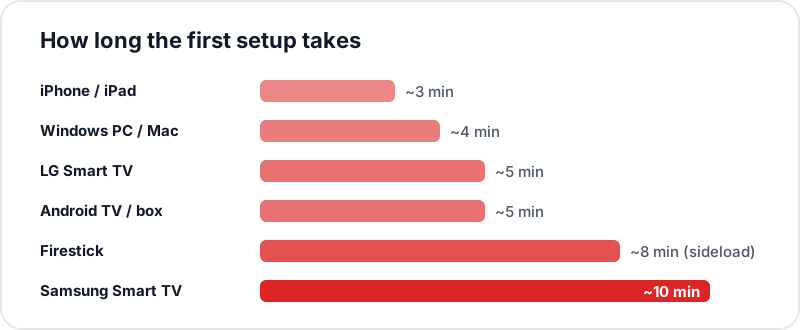
This first-time IPTV setup guide covers what you need before you start. Whatever you are installing on, the pattern is identical: install a player app, choose the Xtream Codes option, and enter the server URL, username and password issued with your subscription. Firestick and Android sideload TiviMate or IPTV Smarters Pro; Samsung and LG install SS IPTV or IBO Player from their own stores; iOS uses the App Store. Each takes about five minutes.
Never set up IPTV before? Start with this IPTV beginners guide and first-time setup checklist: the credentials you need (they arrive with a Flickhaven subscription plan), the right app for your device and the broadband speed to expect, then quick-start steps for Firestick, Samsung TV, LG TV, Android, iPhone and PC. For the full install on every device, use our step-by-step IPTV installation guide.
Still deciding on hardware? This comparison will help you choose your IPTV device.
💬 Get Free Setup Help on WhatsApp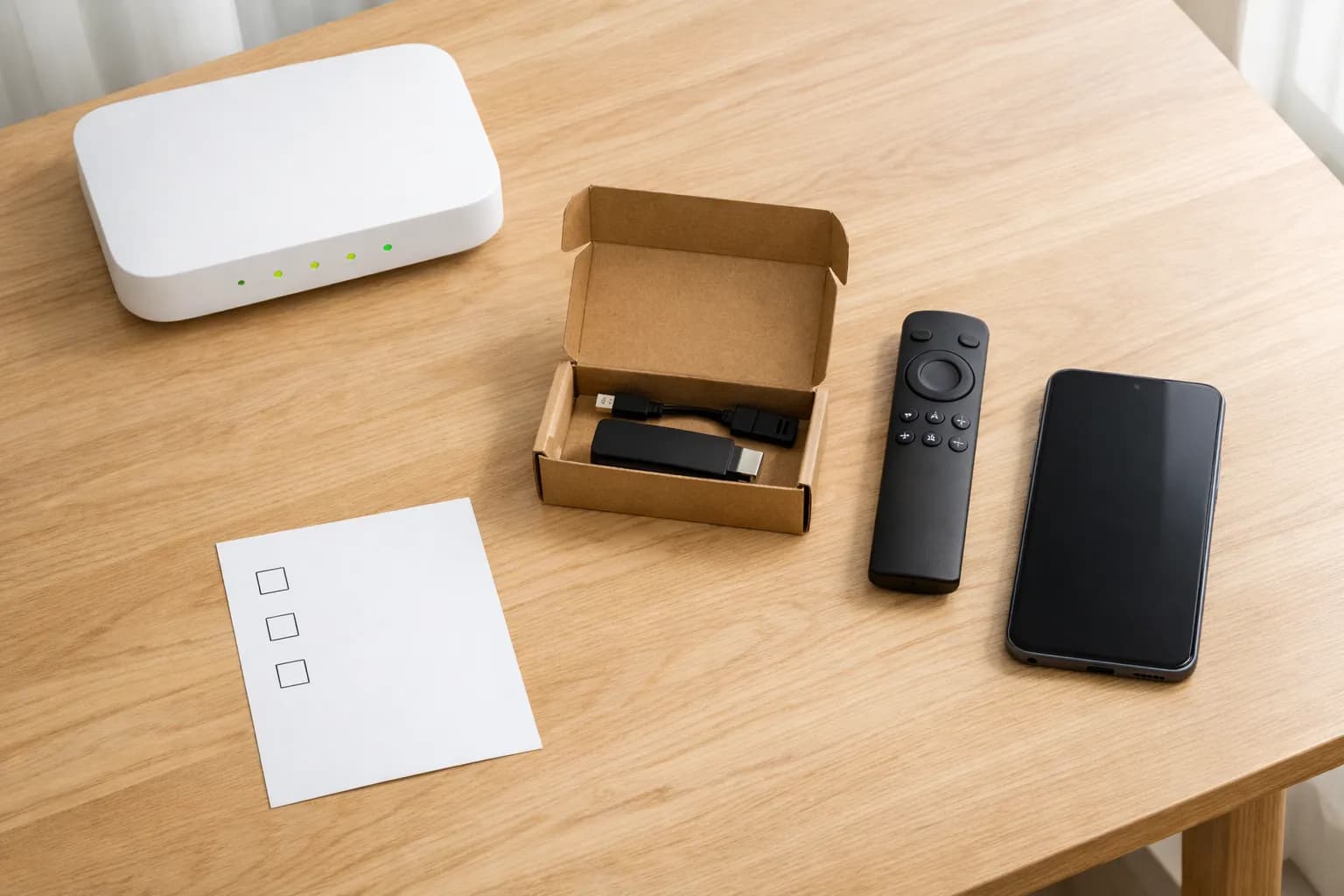
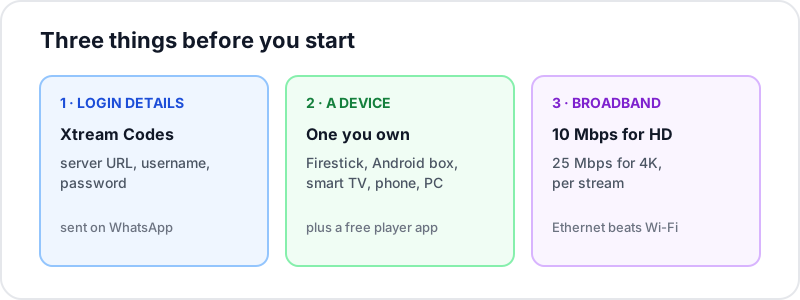
What Do You Need for IPTV? Three Things
IPTV Subscription
You need an active IPTV plan that provides Xtream Codes credentials: a server URL, username, and password. These come in your Flickhaven WhatsApp message.
A Compatible Device
Firestick, Android TV box, Samsung or LG Smart TV, iPhone, iPad, Windows PC, or Mac. All supported — pick your device in the sections below.
Fast Internet (10 Mbps+)
For reliable HD streaming you need about 10 Mbps per stream, and 25 Mbps for 4K. Wired Ethernet is always better than Wi-Fi for IPTV.
Internet Speed Requirements
Check your connection is fast enough before setting up.
| Quality | Speed Required | Screens | Notes |
|---|---|---|---|
| SD (480p) | 5 Mbps | 1 screen | Basic viewing |
| HD (720p) | 10 Mbps | 1 screen | Recommended minimum |
| Full HD (1080p) | 15 Mbps | 1 screen | Standard viewing |
| 4K Ultra HD | 25 Mbps | 1 screen | Sport/movie nights |
| 4K × 2 screens | 50 Mbps+ | 2 screens | Two rooms at once |
IPTV Setup Guide by Device
Click any section below to expand the full step-by-step setup for your device.
Amazon Firestick / Fire TV
Most PopularThe Firestick is the most popular IPTV device in the UK. It runs Android-based Fire OS, which means you can sideload IPTV Smarters Pro directly using the Downloader app — no technical skills required.
1Enable Unknown Sources▼
On your Firestick go to Settings (gear icon) → My Fire TV → Developer Options → Apps from Unknown Sources. Toggle this ON. This allows you to install apps from outside the Amazon App Store.
2Install the Downloader App▼
Press the Home button and use the search bar to find "Downloader". Select the app by AFTVnews and install it. This free app lets you download APK files directly onto your Firestick.
3Download IPTV Smarters Pro APK▼
Open Downloader and in the URL bar type the official IPTV Smarters Pro download URL (search "IPTV Smarters Pro APK download" on your phone to get the official link from iptvsmarters.com). Enter the URL and press Go.
4Install the APK▼
Once the APK downloads, Downloader will prompt you to install it. Press Install and wait 10–15 seconds. When it says "App installed", press Open.
5Add Your IPTV Credentials▼
In IPTV Smarters, select "Add User" → "Login with Xtream Codes API". Enter your Flickhaven details: the server URL, your username, and your password exactly as provided. Press Add User.
6Wait for Channels to Load▼
IPTV Smarters will load your full playlist — all 55,000+ channels, the VOD library, and the EPG guide. This takes 30–60 seconds on first load. After that, it's instant.
Samsung Smart TV
Smart TVSamsung Smart TVs run Tizen OS — not Android — so you can't install APK files. Instead, use the Smart IPTV (SIPTV) app available directly in the Samsung App Store, or use a Firestick plugged into your HDMI port.
1Open the Samsung App Store▼
Press the Home button on your Samsung remote. Navigate to the Apps section at the top of the home screen. Press Enter/Select to open the App Store.
2Search for Smart IPTV▼
Use the search function in the App Store to search for "Smart IPTV" or "SIPTV". Select the app from the results and install it. It's free with a one-time activation fee of €5.49 per TV.
3Note Your TV's MAC Address▼
After launching Smart IPTV, it will display your TV's MAC address on screen (format: AA:BB:CC:DD:EE:FF). Write this down — you'll need it to activate and load your playlist.
4Upload Your M3U Playlist (on PC/Phone)▼
On a computer or phone, go to the Smart IPTV website (siptv.app). Enter your TV's MAC address and paste your Flickhaven M3U URL (from your WhatsApp message). Press Send. The playlist uploads to your TV.
5Refresh on Your TV▼
Back on your Samsung TV, close Smart IPTV completely and relaunch it. Your full channel list should now load. Navigate channels using your Samsung remote's direction buttons.
LG Smart TV
Smart TVLG Smart TVs run webOS. The easiest IPTV method is SS IPTV, which is completely free and available directly in the LG Content Store — no sideloading or developer mode required.
1Open the LG Content Store▼
Press the Home button on your LG Magic Remote. Navigate to the LG Content Store icon at the top of the home screen and press OK to open it.
2Search for SS IPTV▼
Use the search icon in the Content Store and type "SS IPTV". Select the app from the results and press Install. SS IPTV is completely free.
3Launch SS IPTV▼
After installation, press Open or find SS IPTV in your LG app drawer. On the first launch it will show a playlist setup screen.
4Add Your IPTV Subscription▼
Press the red button (or navigate to Add Playlist → Xtream Codes API). Enter your Flickhaven server URL, username, and password. Press Connect.
5Browse and Watch▼
SS IPTV will load your full channel list. Use the LG Magic Remote to navigate categories. Press OK on any channel to start watching.
Android TV / Android Box
Most FlexibleAndroid TV boxes (Nvidia Shield, Chromecast with Google TV, Mi Box) and Android TV smart TVs (Sony, Philips, TCL) support IPTV apps directly from the Google Play Store — no sideloading needed.
1Open Google Play Store▼
Navigate to the Google Play Store on your Android TV or Android box. If you have a standard Android TV Smart TV (Sony, Philips, TCL), the Play Store icon should be on the home screen.
2Install IPTV Smarters Pro▼
Search for "IPTV Smarters Pro" in the Play Store and install it. It's free to download. Alternatively, search for "TiviMate" for a premium TV-guide-style experience (TiviMate companion app is a separate free download with a paid companion unlock).
3Launch and Select Login Type▼
Open IPTV Smarters Pro. On the first screen, select "Add User" → "Login with Xtream Codes API".
4Enter Your Flickhaven Credentials▼
Enter the server URL, username, and password from your Flickhaven WhatsApp message. Press "Add User". The app will connect and load your full playlist.
5Start Watching▼
Your channels, VOD library, and EPG guide load automatically. Navigate using your remote's directional buttons. Press the back button to return to the main menu.
iPhone / iPad
iOSiPhone and iPad are the quickest devices to set up for IPTV — IPTV Smarters Pro is available directly in the Apple App Store, and setup takes under 3 minutes.
1Download IPTV Smarters Pro from App Store▼
Open the App Store on your iPhone or iPad. Search for "IPTV Smarters Pro" and download it. The app is free to download.
2Open and Add a User▼
Launch IPTV Smarters Pro. On the welcome screen, tap "Add User". You'll see three login type options.
3Select Xtream Codes API▼
Tap "Login with Xtream Codes API". Three fields appear: Server URL, Username, and Password.
4Enter Your Flickhaven Details▼
Enter your server URL, username, and password exactly as provided in your Flickhaven WhatsApp message. Tap "Add User".
5Browse Channels and VOD▼
Your full channel list, series, and movies load automatically. Use the tab bar at the bottom to switch between Live TV, Movies, Series, and Catch-Up.
Windows PC / Mac
DesktopWindows and Mac users can install IPTV Smarters Pro as a desktop application, or use GSE Smart IPTV as an alternative. You can also use VLC Media Player with an M3U URL for a simple no-install option.
1Download IPTV Smarters for Windows/Mac▼
Visit the official IPTV Smarters website on your PC or Mac and download the desktop version for your operating system (Windows 10/11 or macOS 12+). Run the installer.
2Launch and Add Your Profile▼
Open IPTV Smarters on your computer. Click "Add User" on the home screen.
3Enter Xtream Codes Credentials▼
Select "Login with Xtream Codes API" and enter your Flickhaven server URL, username, and password. Click Add User.
Common Setup Problems & Fixes
Something not working after setup? Here are the most frequent issues and how to resolve them.
✗Channels not loading after setup▼
Fix
Double-check your server URL — ensure it includes http:// and the port number (e.g., http://server.com:8080). Credentials are case-sensitive. Try Force Reload or Remove User and re-add.
✗IPTV buffering on every channel▼
Fix
Run a speed test on the streaming device — you need about 10 Mbps per HD stream and 25 Mbps for 4K. Switch from Wi-Fi to wired Ethernet. If speed is fine, try a VPN — your ISP may be throttling IPTV traffic.
✗EPG / TV guide is empty▼
Fix
Go to the EPG settings in your IPTV app and press Force Update or Refresh EPG. Check your device timezone is set to GMT/BST, not a fixed UTC offset — the clocks change twice a year, and a stuck setting will show every Saturday kick-off an hour out once BST starts. Full EPG load can take up to 5 minutes on first setup.
✗Some channels work but others show black screen▼
Fix
The specific channel servers may be down temporarily. Try the same channel in SD quality instead of HD. Check with your provider if multiple premium channels are affected simultaneously.
✗App crashes on Firestick▼
Fix
Go to Settings → Applications → IPTV Smarters → Clear Cache and Clear Data. Restart the Firestick. If crashes persist, uninstall and reinstall using a fresh APK download.
✗Can't find IPTV Smarters on Smart TV▼
Fix
Samsung Tizen and LG webOS do not have IPTV Smarters in their app stores. Use Smart IPTV (Samsung) or SS IPTV (LG) instead — both support the same Xtream Codes credentials.
More help: Channels not loading guide → | Buffering fix guide → | Watch Premier League on IPTV →
Frequently Asked Questions
QCan you install IPTV yourself?▼
Yes. There is no engineer visit or hardware delivery: install a free player app, enter the three login details and the channels load. A Firestick needs one extra sideloading step, and a MAG box takes a portal URL in its settings instead of an app.
QWhat internet speed do I need for IPTV?▼
Per stream: about 5 Mbps for SD, 10 Mbps for HD, 15 Mbps for Full HD and 25 Mbps for 4K. For multiple simultaneous screens, add the figure for each stream. Wired Ethernet is always more reliable than Wi-Fi for IPTV.
QWhy is my IPTV buffering after setup?▼
Buffering is usually caused by: slow internet (run a speed test — you need about 10 Mbps per HD stream and 25 Mbps for 4K), Wi-Fi interference (switch to Ethernet or move closer to your router), or ISP throttling (try a VPN). If buffering only occurs on specific channels, the issue may be with those stream servers.
QWhy does my IPTV only buffer in the evening?▼
That pattern points to UK peak-time contention rather than a broken setup. Between roughly 7–10pm, shared local infrastructure (BT/EE cabinets, Virgin Media's street-level cable nodes) gets busiest, and it's most noticeable on a Premier League matchday evening. A midday speed test will look fine even when the same connection struggles at 8pm — that gap is the diagnostic.
QWhat is Xtream Codes and how do I use it?▼
Xtream Codes is the standard IPTV login format. Your provider gives you three things: a server URL, a username, and a password. In any IPTV app, choose "Xtream Codes API" as the login type and enter these three values to load your full channel list, VOD, and EPG automatically.
Device-specific guides: Firestick IPTV Guide, Samsung TV IPTV, LG TV IPTV and Android TV IPTV. Choosing an app: Best IPTV Apps 2026. Still stalling? Fix IPTV Buffering.
Need a Free IPTV Trial First?
Before you set anything up, test Flickhaven free for 24 hours. Full access — 55,000+ channels, VOD, EPG — on your actual device, no payment needed.